
An Easy Way to Install Windows Terminal on Windows Server 2022 Datacenter Edition

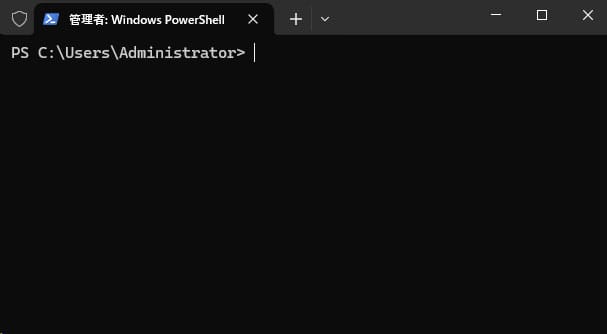
Hello!
This post is a note on how to install Windows Terminal on the Windows Server 2022 Datacenter edition.
Doing it step by step was a bit of a hassle, so I turned the whole procedure into a script you can simply paste into PowerShell to install everything automatically.
Paste the script below into a PowerShell window opened with administrator privileges, and Windows Terminal will be installed for you.
(That said, we cannot guarantee or take responsibility for the results of running the script.)
Why it is a hassle
The trouble is that on Windows Server 2022, neither the Microsoft Store nor App Installer (winget) is installed by default, so Windows Terminal has to be installed manually.
So here is a paste-and-go script
Paste the following script into a PowerShell window opened with administrator privileges, and Windows Terminal will be installed.
The download destination is set to [username]/Downloads, so the downloaded files and the extracted files will remain in your Downloads folder. It is safe to delete them after the installation.
# Download and install VCLibs
Invoke-WebRequest -Uri "https://aka.ms/Microsoft.VCLibs.x64.14.00.Desktop.appx" -OutFile "$env:USERPROFILE\Downloads\Microsoft.VCLibs.x64.14.00.Desktop.appx"
Add-AppxPackage -Path "$env:USERPROFILE\Downloads\Microsoft.VCLibs.x64.14.00.Desktop.appx"

# Download UI Xaml 2.8
Invoke-WebRequest -Uri "https://www.nuget.org/api/v2/package/Microsoft.UI.Xaml/2.8.5" -OutFile "$env:USERPROFILE\Downloads\Microsoft.UI.Xaml.2.8.zip"

# Extract the UI Xaml 2.8 zip
Expand-Archive -Path "$env:USERPROFILE\Downloads\Microsoft.UI.Xaml.2.8.zip" -DestinationPath "$env:USERPROFILE\Downloads\Microsoft.UI.Xaml.2.8"

# Install the x64 appx file for UI Xaml 2.8
Add-AppxPackage -Path "$env:USERPROFILE\Downloads\Microsoft.UI.Xaml.2.8\tools\AppX\x64\Release\Microsoft.UI.Xaml.2.8.appx"

# Download Windows Terminal and save it to the Downloads folder
Invoke-WebRequest -Uri "https://github.com/microsoft/terminal/releases/download/v1.21.2701.0/Microsoft.WindowsTerminal_1.21.2701.0_8wekyb3d8bbwe.msixbundle" -OutFile "$env:USERPROFILE\Downloads\Microsoft.WindowsTerminal_1.21.2701.0_8wekyb3d8bbwe.msixbundle"
explorer "$env:USERPROFILE\Downloads"

# Install Windows Terminal
Add-AppxPackage -Path "$env:USERPROFILE\Downloads\Microsoft.WindowsTerminal_1.21.2701.0_8wekyb3d8bbwe.msixbundle"
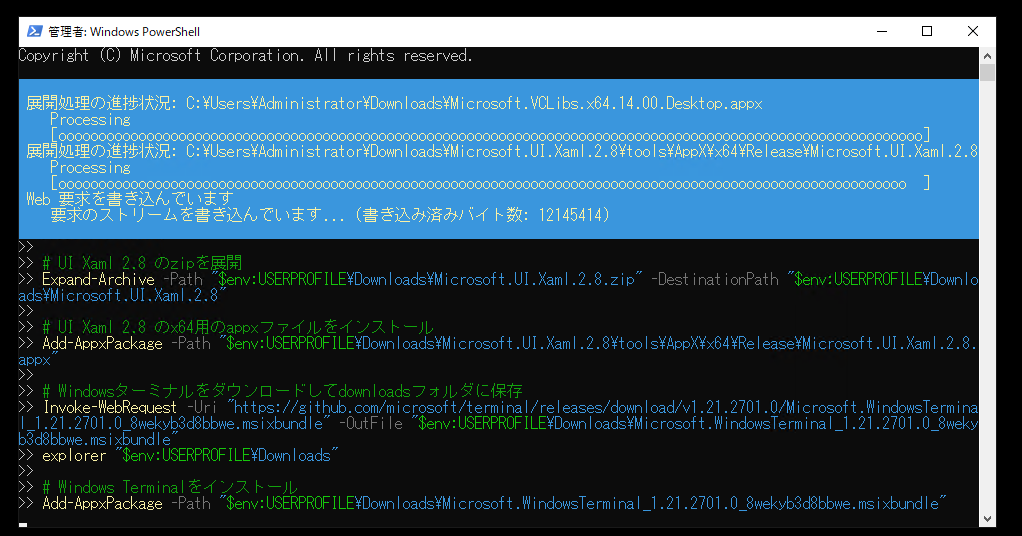
The script starts by downloading the required packages, and after a few minutes Windows Terminal will be installed.
Cleaning up the Downloads folder

The files related to the Terminal installation are generated as shown here. It is safe to delete them.
Verifying the installation
Try typing "terminal" into the search box.
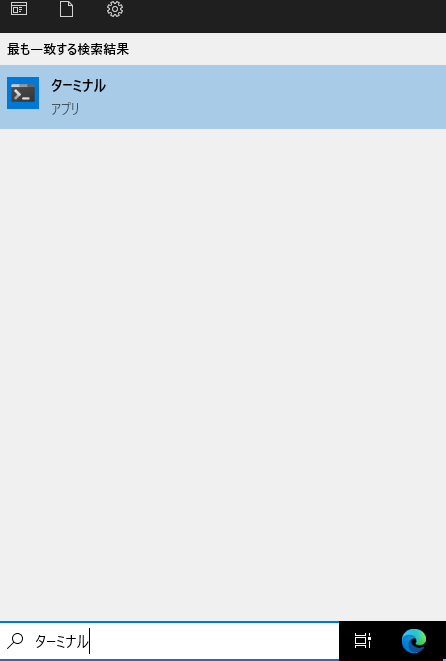
There it is — the Terminal app has been installed properly.
Incidentally, you can also launch it by simply typing
wtinto the search box.



