
Building a GPU PC, Part 3: The Dream of Running Two Graphics Cards

Hello again.
Today's topic is lane bifurcation and running two graphics cards.
As we saw last time, on Intel Core series CPUs, the PCI Express connection coming directly from the CPU is PCIe Gen 5 x16 (16 lanes).
PCIe Gen 5 is extremely fast, and since 16 of those lanes are available, this PCIe Gen 5 x16 connection is effectively reserved for the graphics card (GPU).
As it turns out, some motherboards let you split that PCIe Gen 5 x16 connection in two.
Let's take another look at the Z690 chipset block diagram.
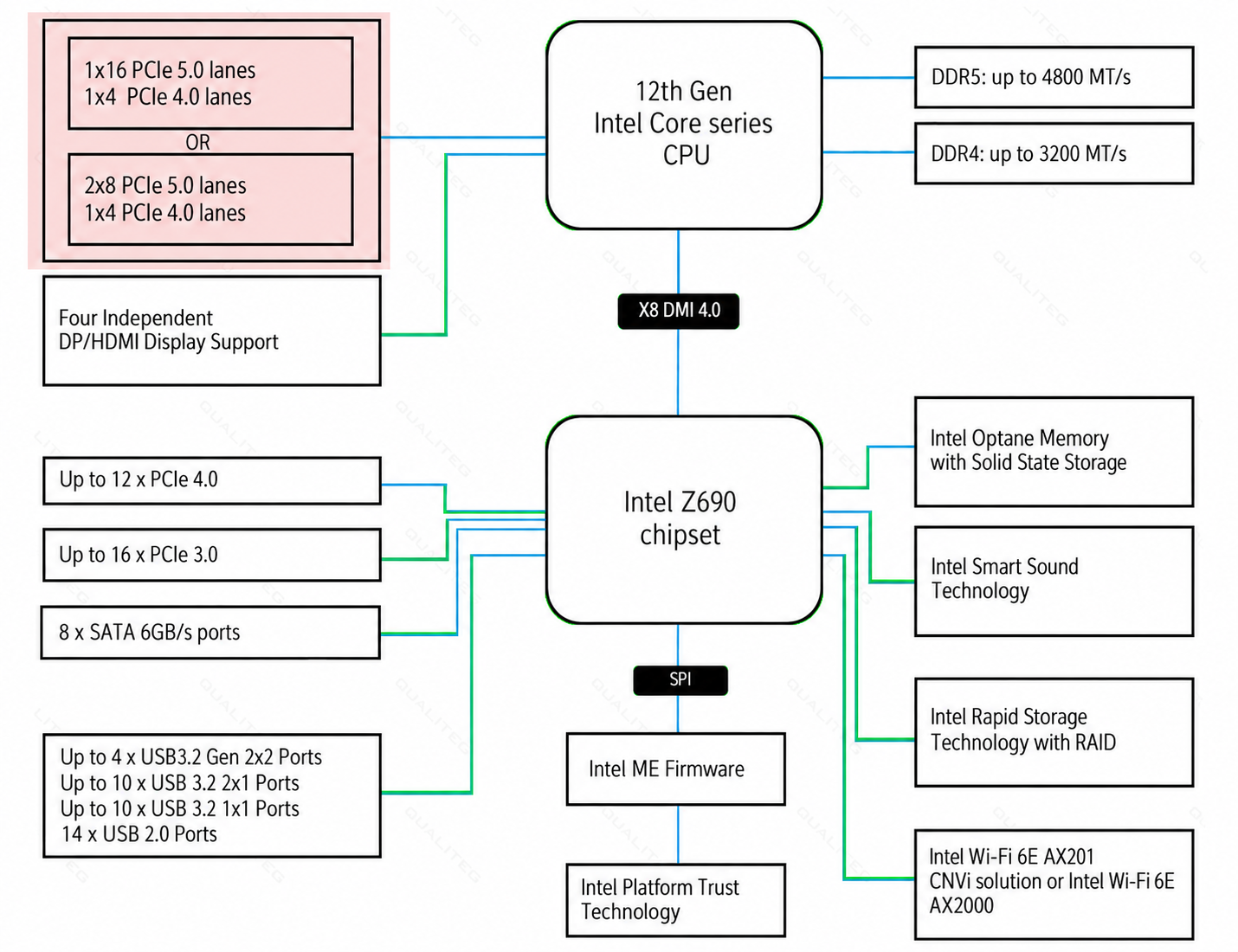
In the upper left, marked with the arrow below, there are two boxes with "OR" written between them.
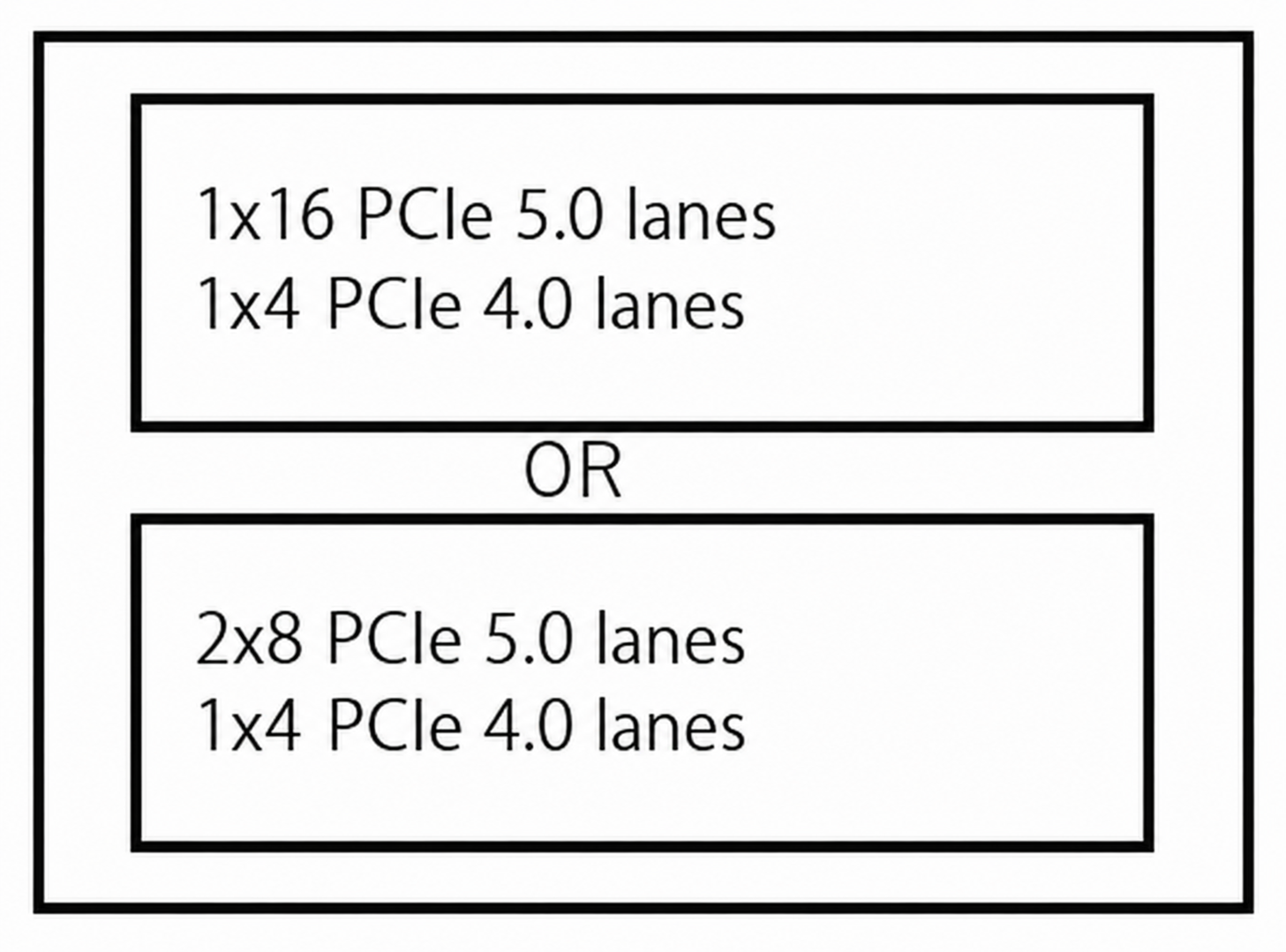
This means "you can choose either one of the following two configurations."
- 1x16 PCIe 5.0 ... connect one PCIe x16 expansion card
- 2x8 PCIe 5.0 ... connect two PCIe x8 expansion cards
In other words, there are 16 PCIe 5.0 lanes in total; you can use all 16 in a single slot, or you can split them across two slots with 8 lanes each.
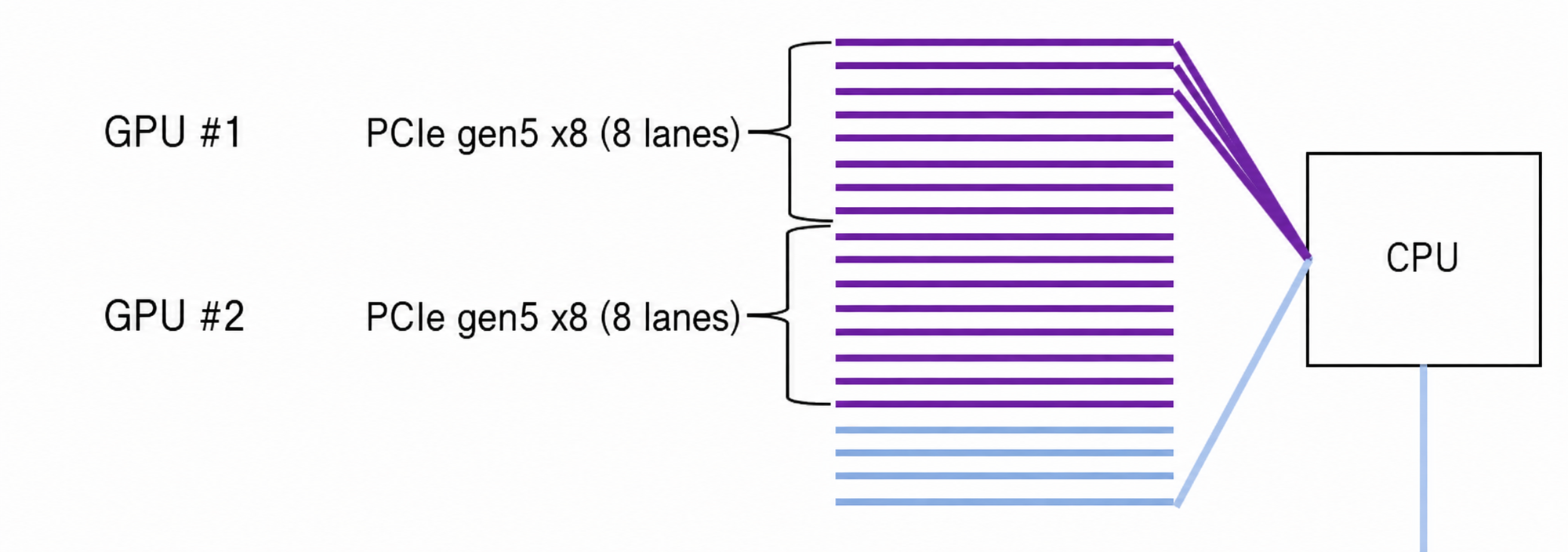
This is called lane bifurcation.
Lane Bifurcation
With lane bifurcation, each graphics card runs as PCIe Gen 5 x8, which lets you use two graphics cards at the same time.
That is the principle behind running two graphics cards on an Intel Core series CPU.
With PCI Express Gen 5, even x8 (8 lanes) provides 32 GB/s of bandwidth, so for workloads that do not demand more than that, this should not be a problem.
Lane Bifurcation Requires Motherboard Support
That said, not every motherboard supports lane bifurcation. Even if the CPU supports it, you cannot use lane bifurcation unless the motherboard supports it as well.
So let's look at an actual motherboard that supports lane bifurcation.
The MSI MPG Z690 CARBON WIFI from MSI is a motherboard that supports lane bifurcation. It belongs to their gaming lineup, but it is a very stable, well-made board.
Below is an excerpt of the Expansion Slot specifications from the manual.
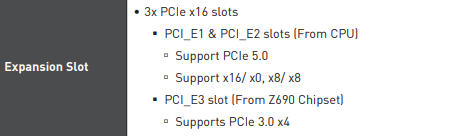
It looks intimidating at first,
but if you have been following this series, you should be able to read it without much trouble.
Let's decode it together.
I have numbered each line from (1) to (6).
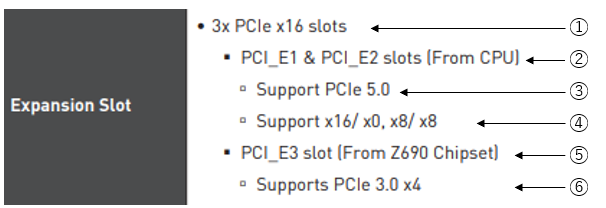
Line (1) reads: "Three PCI Express x16 slots are provided."
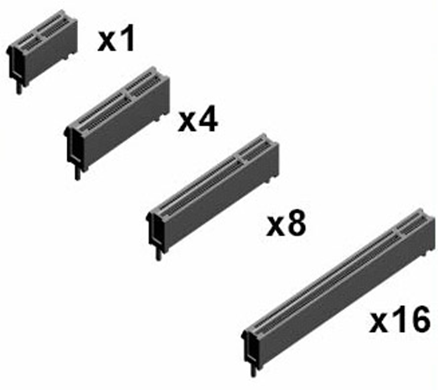
This means the motherboard has three PCI Express slots with the x16 form factor. Note that this refers only to the physical shape. Recall that PCI Express "slots" come in x1, x4, x8, and x16 sizes.
That is what this refers to. Be careful: it does not indicate the number of internally connected PCI Express lanes.
Next, let's look at (2).
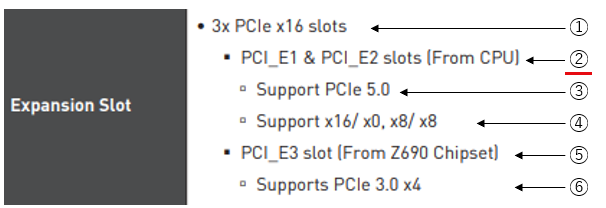
Line (2) can be read as: "The PCI_E1 and PCI_E2 slots are connected to the CPU."
Yes, you can probably guess what this means. That's right: PCI_E1 and PCI_E2 are the slots for running two graphics cards.
While we are at it, let's look at the PCI_E1 and PCI_E2 slots on the actual motherboard.
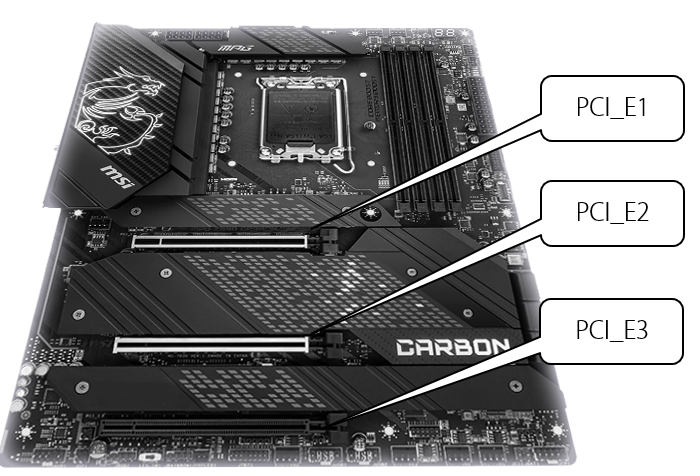
As shown above, this is where the PCI_E1 and PCI_E2 slots are located.
You can also see that both are x16-type slots (the long ones).
Next, let's read (3).
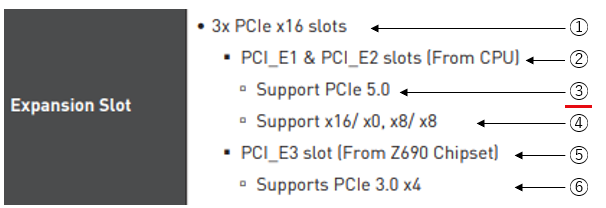
Line (3) states that PCI_E1 and PCI_E2 "support PCI Express 5.0."
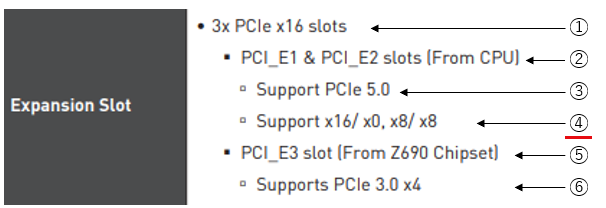
Line (4) says: "Supports x16/x0 and x8/x8."
So what does this mean?
This is describing the lane bifurcation we discussed earlier.
In other words, it can be read as follows.
What "x16/x0" means
It means the following.
- The PCI_E1 slot is used as PCI Express Gen 5 x16
- The PCI_E2 slot is disabled (cannot be used)
That is, all 16 lanes connected to the CPU are used by the PCI_E1 slot. As a result, no lanes are left for PCI_E2; it gets zero lanes, so even if you insert an expansion card into the PCI_E2 slot, it effectively cannot be used.
What "x8/x8" means
As you have no doubt already worked out,
this means the following.
- The PCI_E1 slot is used as PCI Express Gen 5 x8
- The PCI_E2 slot is also used as PCI Express Gen 5 x8
In the specifications, all of this is expressed in that very compact notation. Anyone used to it understands it at a glance, but if you are not, it can be hard to tell what it is saying.
So, this motherboard, the MSI MPG Z690 CARBON WIFI, supports x8/x8 mode, and by using x8/x8 mode you can run two graphics cards with 8 lanes each.
Finally, let's take a quick look at (5) and (6) as well.
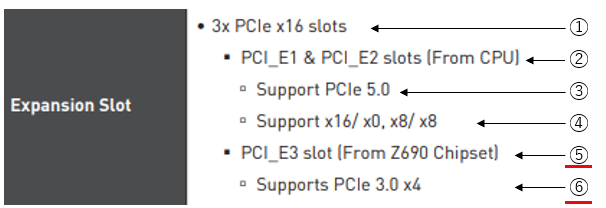
Line (5): "The PCI_E3 slot is wired to the Z690 chipset."
Line (6): "The PCI_E3 slot supports the PCI Express 3.0 x4 standard."
From this we can tell that the lanes connected to the chipset side follow a slower standard.
PCIe 3.0 x4 means four PCI Express 3.0 lanes are connected to the chipset, but let's remember once more that the slot's physical form factor is x16.
Summary
In this installment, we covered PCI Express lane bifurcation and running two graphics cards.
Is your knowledge of building an AI GPU machine deepening?
There are occasions when we want to run two graphics cards in a personal PC for AI research and development, and the know-how covered here comes in handy in those cases. Bear in mind, however, that the higher the performance of a graphics card, the hotter it runs, and running sustained heavy workloads with two cards installed calls for proper knowledge of heat dissipation and airflow. When you do go for two cards, consult an expert who is well versed in PC building. In Akihabara, there are plenty of shop staff you can turn to.
Also, for running multiple graphics cards, the Intel Xeon series is far better suited than the Intel Core series, and we recommend Xeon for serious AI use. We plan to cover this in a separate article as well.
That wraps up the background knowledge.
Starting next time, we will actually build a GPU-equipped machine!
See you next time!
Looking beyond DIY builds toward GPU environments for research and business?
The know-how gained from building your own GPU machine carries over directly to infrastructure choices for research, PoCs, and production.
We build and operate our own GPU cluster in-house and develop LLM products on it. We can also support a wide range of needs, from procuring GPU workstations for research to Intel Core and Intel Xeon architectures, covering everything from consumer to professional use. Beyond helping you procure and build workstations, we advise on what comes next, from setting up training environments to selecting the right GPUs, optimizing inference, and designing distributed configurations, all based on hands-on operational experience.
See our LLM infrastructure and platform technology services →navigation




