
Building a GPU PC, Part 6: Choosing Memory

This time, let's choose the memory and other peripheral parts.
Memory selection has its own pitfalls, and Jun managed to fall right into one. Let's take a look.
Phew. I finally managed to buy the CPU and the motherboard.
What else do I need to buy? Let me check the note my senior colleague left me once more.
(1) The CPU can be either 12th or 13th generation.
(2) Since the machine will be used mainly for the GPU, an i5-class CPU is fine.
(3) Motherboard chipset: Z690 for a 12th-gen CPU, or Z790 for a 13th-gen CPU. ATX.
(4) System memory: 64GB or more. Either DDR4 or DDR5 is OK.
(5) A consumer-grade graphics card is fine, but pick one close to the top-end model.
(6) SSD: 1TB or more.
(7) Power supply: 800W or more, 80Plus Titanium.
(8) Make sure the graphics card actually fits in the case!
I have safely bought items (1) through (3), so what remains is the memory, graphics card, SSD, power supply, and case. Still plenty of shopping to do.
I was getting hungry, so I decided to buy just the system memory and then go for lunch, and moved to the floor where memory is sold.
And right away, I spotted some memory that looked good.
Let's see, it sayscrucial DDR4 3200 2 x 32GB . This is it! The price was around 20,000 yen. I had found memory with exactly the specs written in the note.
Just to be safe, I checked once more.
(4) System memory: 64GB or more. Either DDR4 or DDR5 is OK.
It says either DDR4 or DDR5 is OK, and this one is 64GB.
I quickly finished paying and was about to leave the store to go get lunch, when...
"Sir! Sir! Please wait!"
Me: "Huh?"
"Please wait!"
Me: "Huh? (Wait, did I walk out without going through the register?! 😨)"
I turned around, and there was the store clerk who had advised me on the motherboard earlier, running after me and out of breath.
Me: "Um, is something wrong...?"
"Sir, did you just buy DDR4 at the memory section?"
Me: "Y-yes, I did."
With that, I took the memory I had just bought out of the bag and showed it to him.
"That memory is not compatible with your motherboard!"
Me: "What?!"
"Please let me check the motherboard you purchased once more."
When we checked the motherboard's specifications, it said "DDR5 6000MHz".
Me: "Oh."
As it turns out, the mainstream memory available today comes in DDR4 and DDR5, and the two are completely different things.
Since the note said to buy either DDR4 or DDR5, I assumed either would do and had grabbed DDR4 without thinking. But in fact, you have to buy the specific type that matches your motherboard.
Check whether your motherboard supports DDR5 or DDR4 before buying memory.
That was the lesson. If the clerk had not noticed, I would have ended up with the wrong memory. He kindly exchanged the DDR4 I had bought by mistake forDDR5, and all was well.
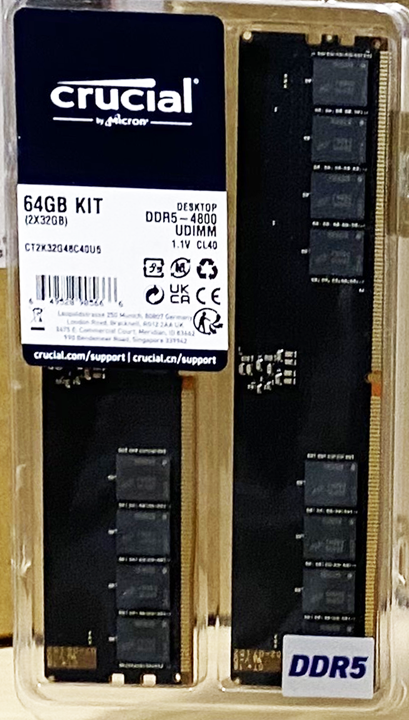
After all that commotion, my hunger had peaked, so I rushed over to the main branch of Niku no Mansei.

How was it?
The lesson this time was that each motherboard has a specific type of memory it supports.
Next time, we finally move on to choosing a graphics card (GPU). Stay tuned!
Column: Motherboard and Memory Compatibility
Let me add a brief note about memory.
The specification sheet for the motherboard in this story said "DDR5 6000MHz". This means the motherboard supports DDR5 6000MHz memory, but what happens if you install slower DDR5 memory, such as DDR5 4800MHz?
In that case, it can basically still be used. However, when the memory is slower than the speed supported by the motherboard, the system will operate at the speed of that memory.
Conversely, what happens if you install memory faster than DDR5 6000MHz?
That is basically fine as well, but there are a few things to keep in mind. If the memory is faster than the maximum speed supported by the motherboard, it will automatically be downclocked to the motherboard's maximum supported speed. In other words, even if you use DDR5 6400MHz memory, it will run at 6000MHz if the motherboard only supports up to 6000MHz.
The benefit of using faster memory may therefore be limited, but if you plan to upgrade your motherboard in the future, buying faster memory now may allow you to take full advantage of that speed on the new motherboard.
In either case, however, the most reliable way to check memory compatibility is to consult the motherboard's product specifications or the manufacturer's official website. Whether memory works correctly also depends on the motherboard's chipset and BIOS settings, so we recommend referring to the official information.
Looking beyond DIY builds toward GPU environments for research and business?
The know-how gained from building your own GPU machine carries over directly to infrastructure choices for research, PoCs, and production.
We build and operate our own GPU cluster in-house and develop LLM products on it. We can also support a wide range of needs, from procuring GPU workstations for research to Intel Core and Intel Xeon architectures, covering everything from consumer to professional use. Beyond helping you procure and build workstations, we advise on what comes next, from setting up training environments to selecting the right GPUs, optimizing inference, and designing distributed configurations, all based on hands-on operational experience.
See our LLM infrastructure and platform technology services →navigation



