
Building a GPU PC, Part 14: Software – Creating a Ubuntu Installation USB

Hello!
Starting with this installment, we move on to the software side of turning our GPU machine into an AI machine.
The goal is to get the GPU working under Ubuntu and, ultimately, to reach the point where we can run inference with an LLM.
1. Creating a Ubuntu Installation USB
Since we want Ubuntu as the main OS on the GPU machine, we will now install Ubuntu.
There are several ways to install Ubuntu, but the approach we will take is to use a Windows office PC to create a USB flash drive containing the Ubuntu image, then use that drive to install Ubuntu on the brand-new PC.
1.1 Prepare a USB flash drive (32 GB or smaller)
First, prepare the USB flash drive onto which the Ubuntu image will be written.
For the reasons below, use a USB flash drive of 32 GB or less.
- A USB flash drive larger than 32 GB cannot be formatted as FAT32
- The USB flash drive used for booting must be formatted as FAT32
If the drive's capacity exceeds 32 GB, Windows treats it as exFAT, so a drive that is too large will not work.
1.2 Download the software for writing the image to the USB flash drive
To write the Ubuntu image (ISO format) to the USB flash drive, download the software called Unetbootin from the link below.
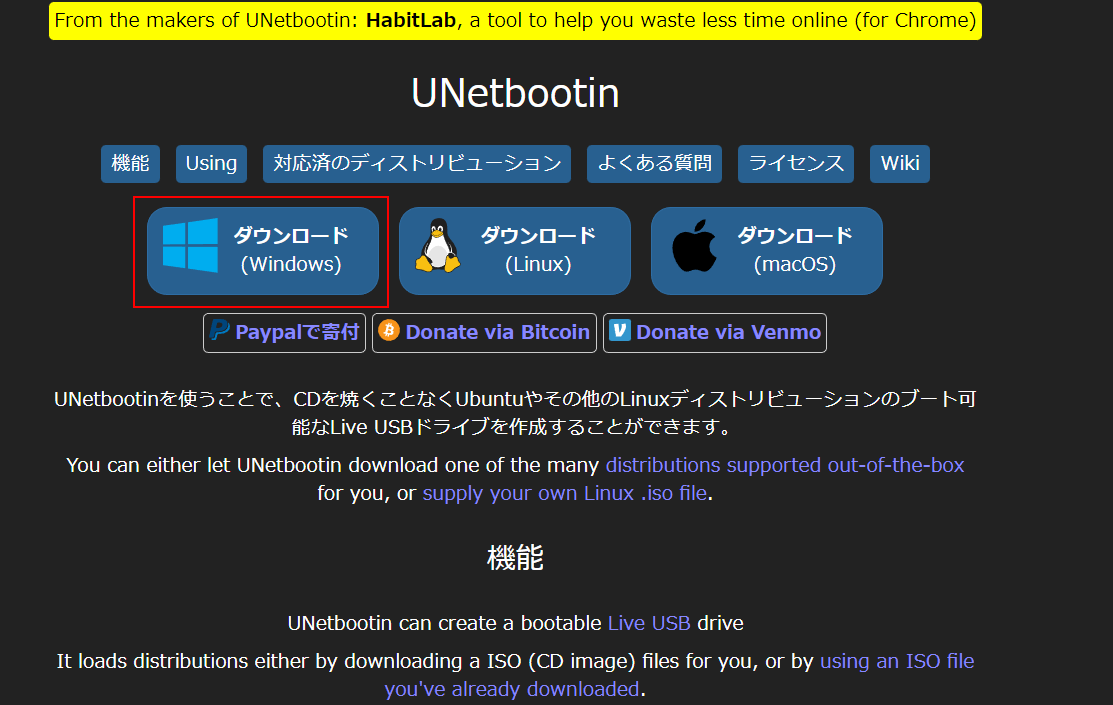
A file named unetbootin-windows-702.exe has now been saved to your Downloads folder.
1.3 Download Ubuntu
Download Ubuntu from the link below.
(or https://jp.ubuntu.com/download for the Japanese site)
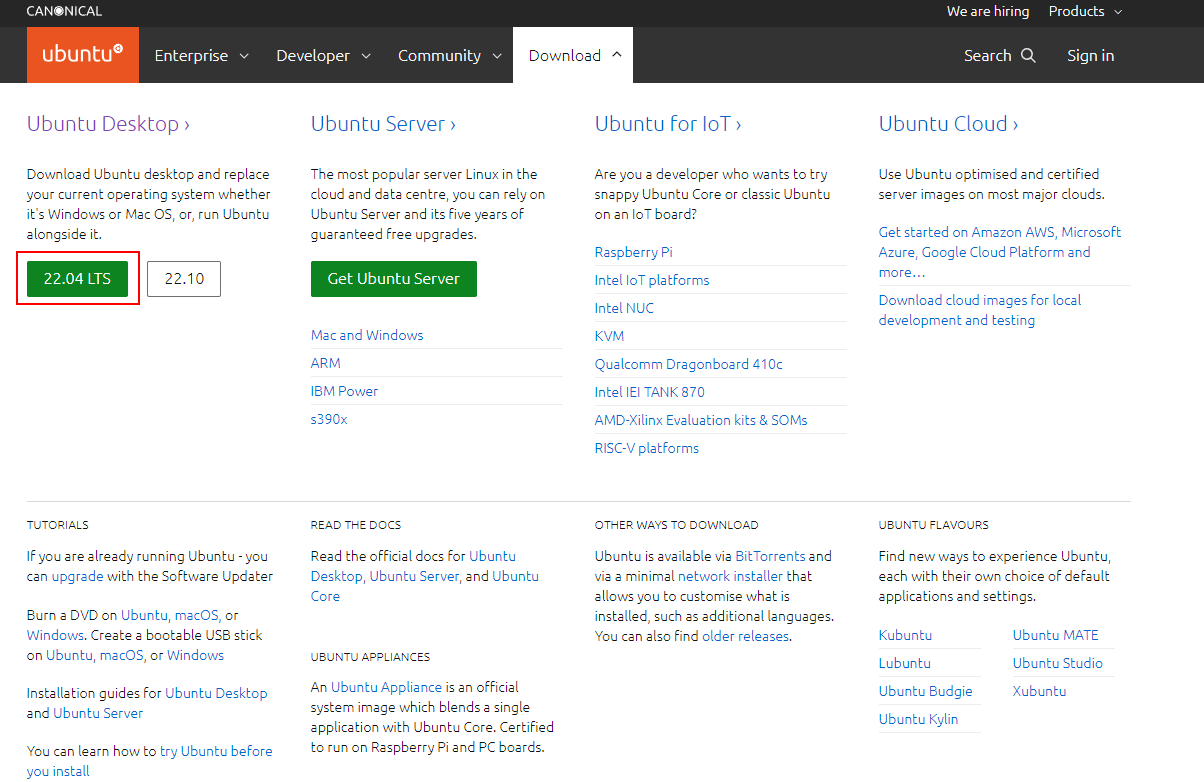
The current latest LTS version is 22.04 LTS, so download that.
A file named ubuntu-22.04.1-desktop-amd64.iso is now saved in your Downloads folder.
1.4 Create the Ubuntu installation USB
Format the USB flash drive (if necessary)
-
Insert the USB flash drive (32 GB or smaller, formatted as FAT32) into the Windows PC you are using for setup support
- If it is not recognized as a USB drive, try the PC's other USB ports
-
Once it is recognized, format the USB flash drive using File Explorer (a quick format is fine).
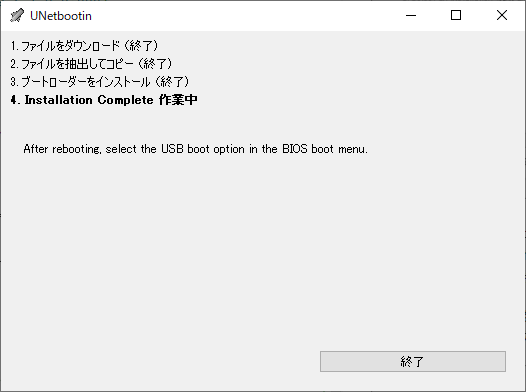
Write the Ubuntu image to the USB flash drive with UNetbootin
- Launch the UNetbootin you downloaded earlier (
unetbootin-windows-702.exe).
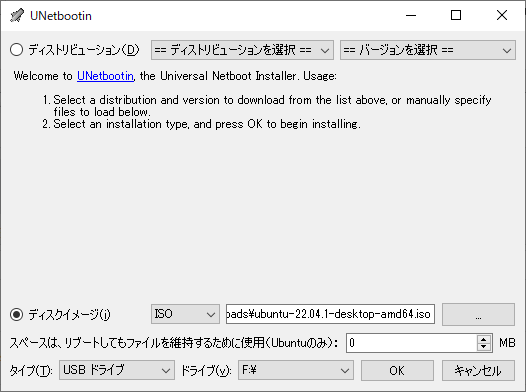
- Check "Diskimage", select ISO, and browse to the Ubuntu image you downloaded earlier,
ubuntu-22.04.1-desktop-amd64.iso.
For Type, select USB Drive, choose the drive letter of the USB flash drive you just formatted, and click OK.
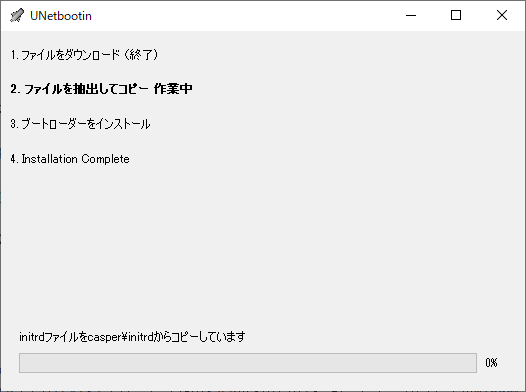
Writing finishes in about 10 minutes.
Looking beyond DIY builds toward GPU environments for research and business?
The know-how gained from building your own GPU machine carries over directly to infrastructure choices for research, PoCs, and production.
We build and operate our own GPU cluster in-house and develop LLM products on it. We can also support a wide range of needs, from procuring GPU workstations for research to Intel Core and Intel Xeon architectures, covering everything from consumer to professional use. Beyond helping you procure and build workstations, we advise on what comes next, from setting up training environments to selecting the right GPUs, optimizing inference, and designing distributed configurations, all based on hands-on operational experience.
See our LLM infrastructure and platform technology services →In the next installment, we will move on to the actual Ubuntu installation!
navigation



