
Building a GPU PC, Part 16: Software – Configuring Ubuntu on the GPU Machine

Hello! In this installment, we configure Ubuntu after the OS installation.
3.1 Configuring Ubuntu
3.1.1 Updates on first boot
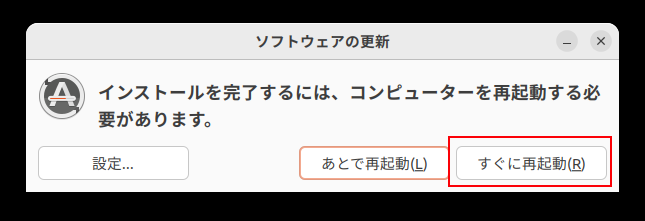
At this point the Ubuntu OS installation is complete. If any updates are shown, such as an Ubuntu OS update or a language pack update, run those first.
When the updates shown on first boot have finished, a dialog like the one below appears. Click Restart Now to reboot once.
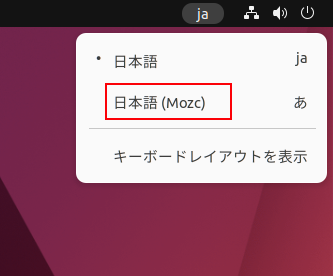
3.1.2 Setting up the Japanese IME
Select the Japanese IME in the top-right corner of the screen.
3.1.3 Creating the "downloads" directory
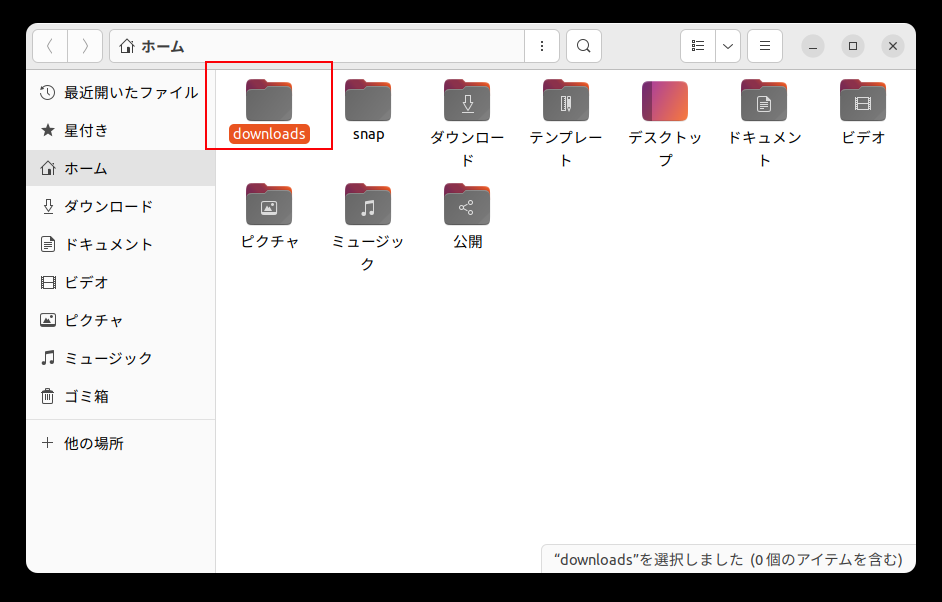
Create a "downloads" directory to store downloaded files.
There is already a Japanese-named 「ダウンロード」 (Downloads) directory, but it is awkward to handle from the terminal (shell), and Japanese folder names are inconvenient in general.
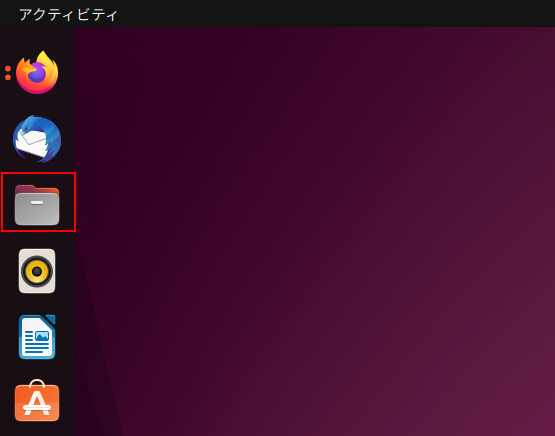
Launch Files from the bar on the left of the screen.
Create a directory named downloads under your Home directory.
3.1.4 Configuring Firefox (browser)
Launch Firefox from the bar on the left.
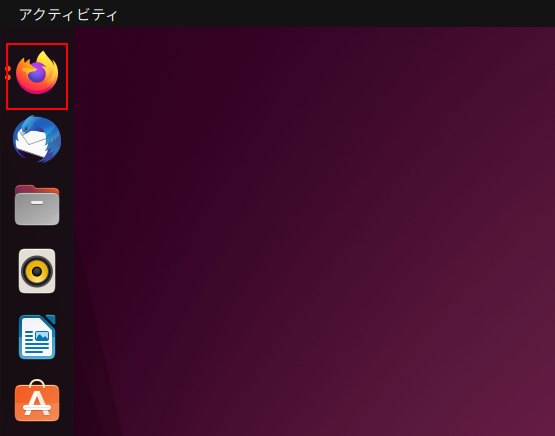
Click the hamburger menu in the top-right corner of the Firefox window,

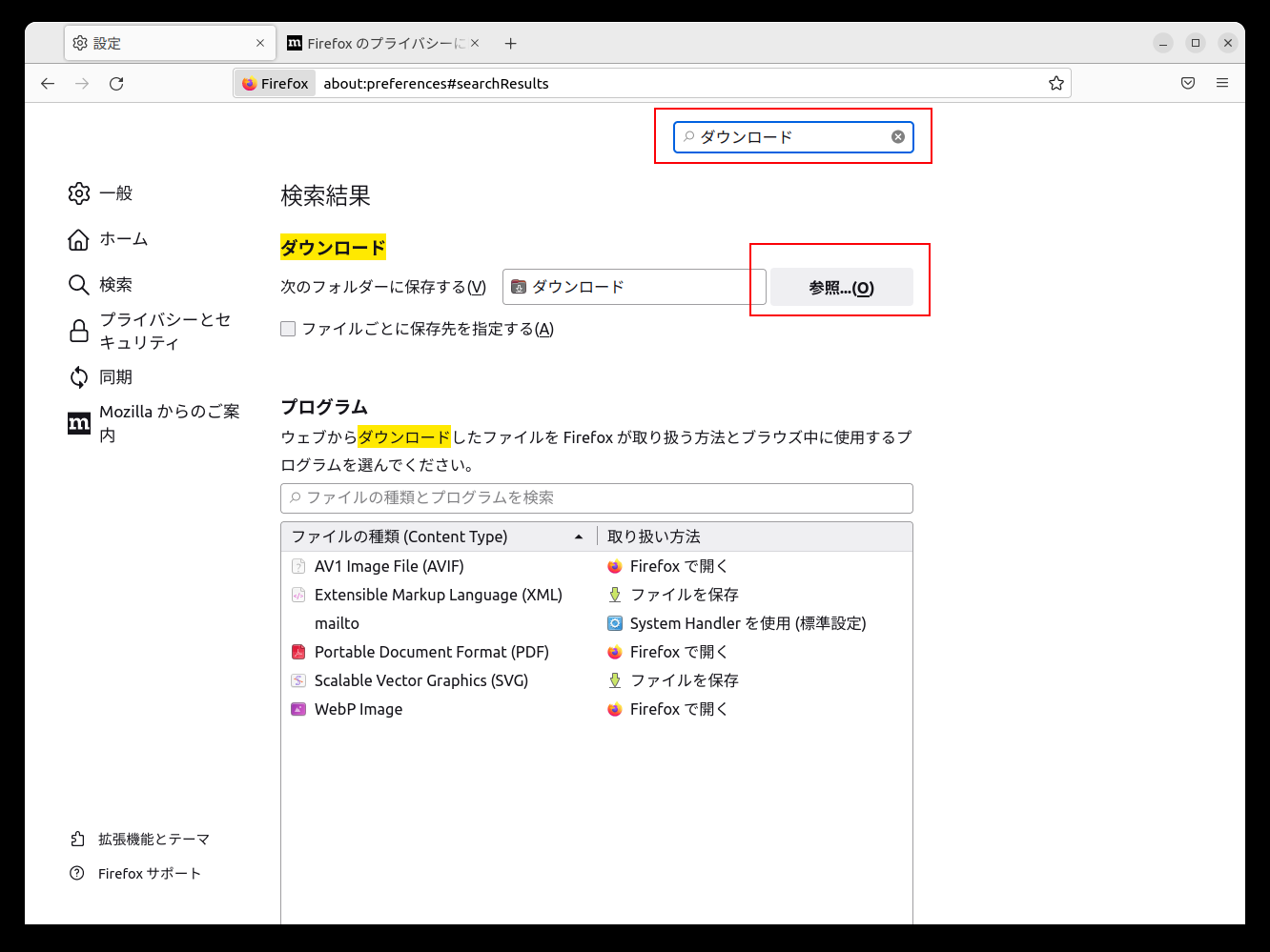
The settings screen appears. Type downloads in the search box,
and the download location setting appears. Click Browse,
and select the downloads directory you created earlier.
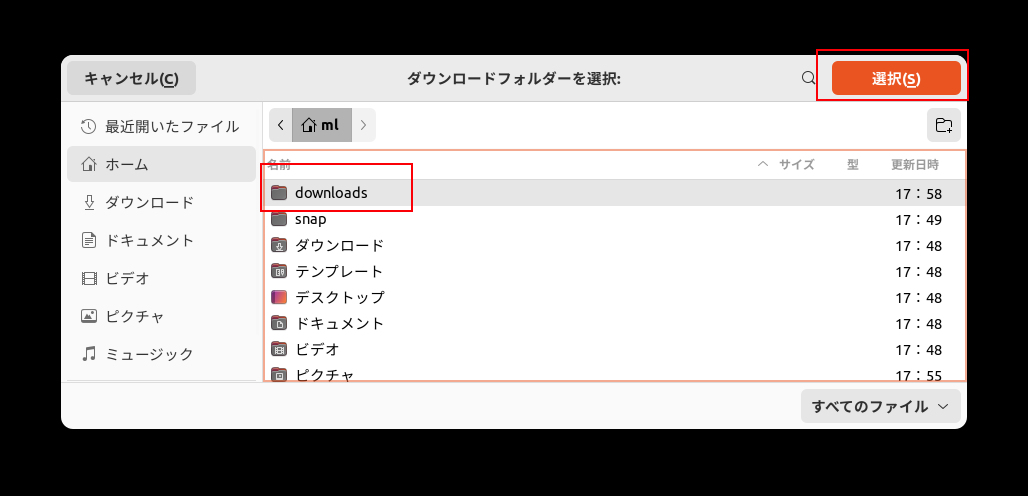
Firefox's default download location is now downloads.
3.1.5 Adding the terminal (shell) to the left bar
The bar on the left is essentially your "favorites." Since the Terminal is used frequently, let's put it there.
- Press the menu button at the bottom left of the screen to show the list of applications
- Click Terminal there to launch it, then
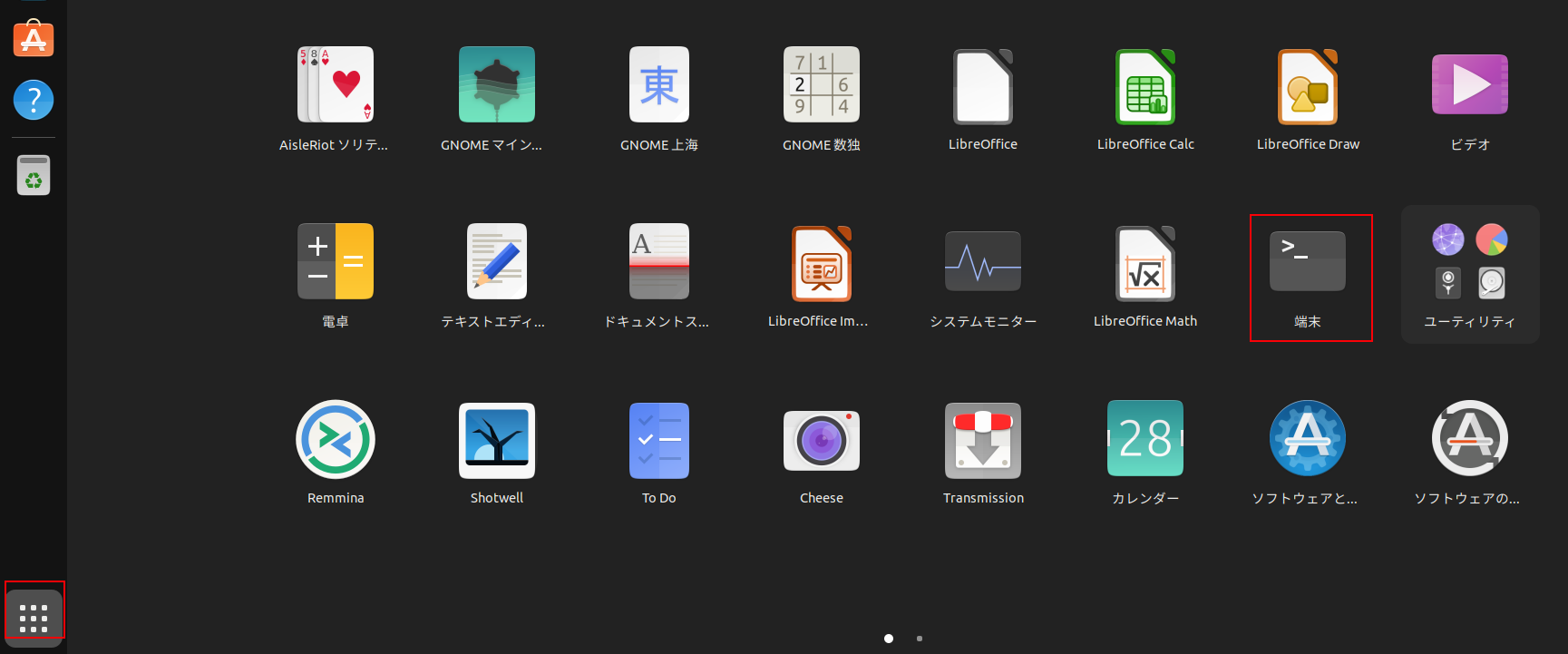
right-click the icon shown in the left bar and choose Add to Favorites.
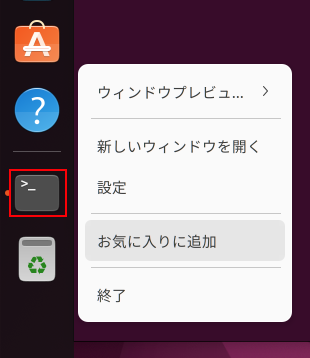
With that, the minimum configuration is complete.
Looking beyond DIY builds toward GPU environments for research and business?
The know-how gained from building your own GPU machine carries over directly to infrastructure choices for research, PoCs, and production.
We build and operate our own GPU cluster in-house and develop LLM products on it. We can also support a wide range of needs, from procuring GPU workstations for research to Intel Core and Intel Xeon architectures, covering everything from consumer to professional use. Beyond helping you procure and build workstations, we advise on what comes next, from setting up training environments to selecting the right GPUs, optimizing inference, and designing distributed configurations, all based on hands-on operational experience.
See our LLM infrastructure and platform technology services →Next time, we will install the NVIDIA Display Driver for the GPU!
navigation



