
Getting Started with Claude Code



Hello!
Today we take up Claude Code, the AI coding agent that has been generating a lot of buzz among engineers lately.
AI coding assistants have multiplied rapidly over the past year or two, and many of you probably feel you can no longer tell which one to choose. In this article, we share our impressions from actually using Claude Code, along with a practical approach to installing and operating it on Windows.
So Many AI Coding Tools—Which One?
In 2025, AI coding assistance became genuinely practical—and the number of options exploded, making the choice harder than ever.
GitHub Copilot, Cursor, Windsurf, Devin, Aider, Cline, OpenHands—counting both commercial and open-source tools, the list easily exceeds 20.
Many overlap in features and philosophy, and just keeping up with the news can be exhausting.
Previously on this blog, we mapped out the overall landscape in our roundup of 20 AI coding agents.
 Qualiteg コンサルティング
This time, we single out Claude Code and explain everything from installation to day-to-day operation as concretely as possible, assuming a Windows environment.
Why We Chose Claude Code
To the question "so which one is best?"—honestly, it depends on your use case. If you value an IDE-integrated experience, Cursor or Windsurf will suit you; if you want to control diffs yourself as you go, a human-driven tool like Aider is a better fit.
That said, Claude Code has strengths of a somewhat different character when it comes to sustained, ongoing use. In particular—predictable costs, the flexibility of a CLI, and raw codebase-comprehension ability—we found it easy to recommend even to first-time adopters.
| Feature | Claude Code | Other tools |
|---|---|---|
| Additional API billing | Not required (included in Pro/Max plans) | Many require separate API billing |
| SWE-Bench* Verified | 74.40% (Claude 4.5 Opus, #1 as of December 2025) | Gemini 3 Pro: 74.20%, GPT-5.2: 71.80% |
| Ease of setup | One-command install, no Node.js required | Varies by tool |
| IDE dependency | None (CLI-based) | IDE extensions require a specific IDE |
No Additional API Billing
This matters a great deal for lowering the psychological barrier to adoption. Claude Code is included with a Claude subscription (Claude Pro or Claude Max), so you do not necessarily have to go through the usual routine of issuing an API key and running up metered charges.
With other tools, depending on how you use them, API consumption can balloon and monthly costs become hard to predict. Being able to try things at a flat rate speeds up the adoption decision. The best answer of course depends on your usage and your organization's policies, but as a first move, the ease of trying it out is a clear advantage.
Track Record on SWE-Bench
SWE-Bench is a benchmark that measures how well a model can get its proposed fixes for real GitHub issues to actually "land".
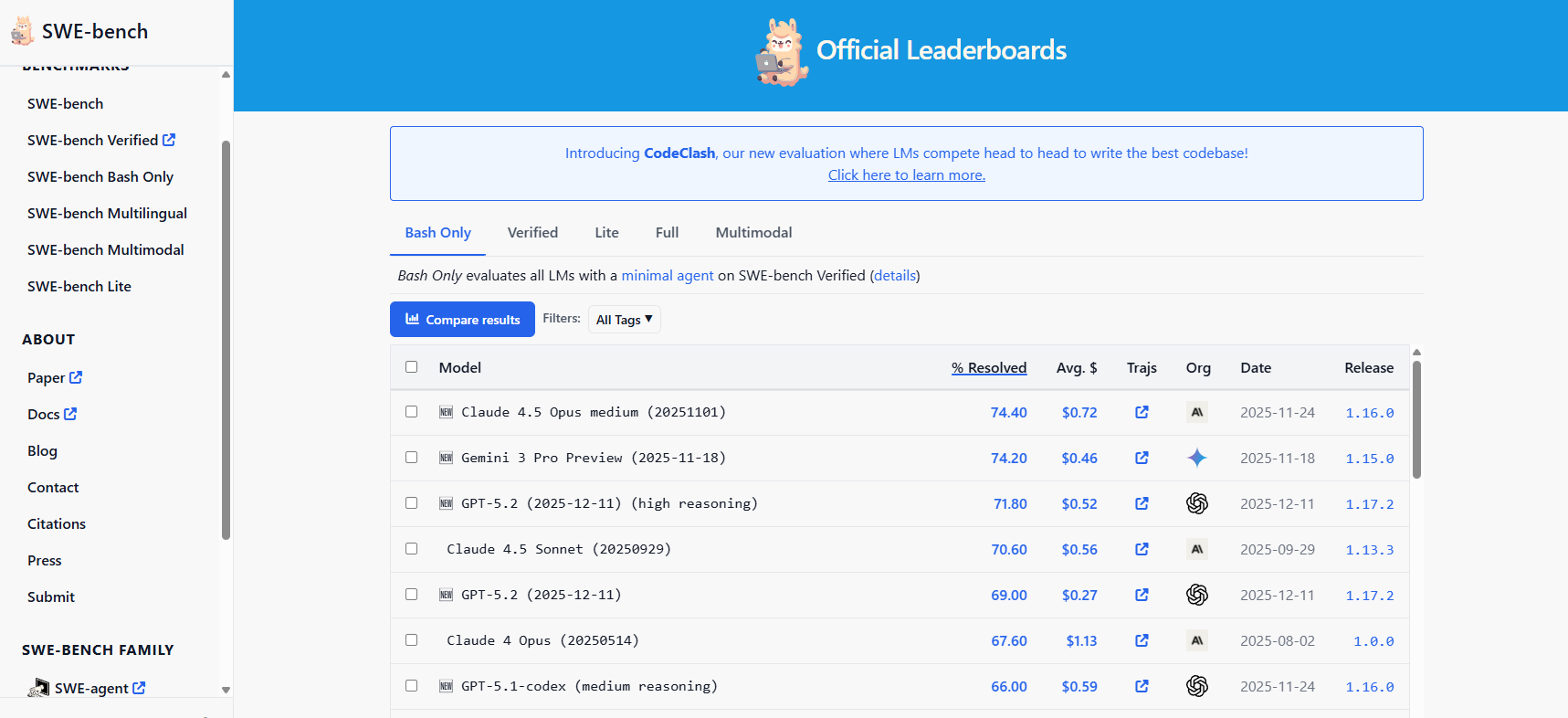
The leaderboard has multiple conditions; this article assumes the "Bash Only / Verified" results. As of December 24, 2025, the ranking stood at Claude 4.5 Opus at 74.40%, Gemini 3 Pro Preview at 74.20%, and GPT-5.2 (high reasoning) at 71.80%.
Benchmarks are, of course, no complete substitute for real-world work. Scores reportedly drop sharply under more realistic conditions, and complex tasks are not the kind of thing that gets finished in one shot.
Even so, in terms of the ability to read an existing codebase and produce coherent, localized fixes, these results indicate the tool has entered practical territory. I rate it not as "magical automation" but as a fast partner that doesn't wear you out.
Who This Article Is For
This article explains installation step by step, assuming a Windows environment. That said, once you are inside WSL2 the operations are essentially the same as on Linux, so Mac and Linux users can directly apply the sections on the CLI version, operational cautions, and the approach to Git integration.
By the end, you should be able to decide between (1) the safest way to just try it, (2) the fastest setup for personal development, and (3) an accident-resistant setup for confidential work—and reproduce your choice on your own machine.
Web Version vs. CLI Version
Claude Code comes in two forms: the web version, used in the browser, and the CLI version, which runs in your terminal.
The Claude Code web version is
extremely easy to start with—all you need is a GitHub account and a browser. On the other hand, as sessions grow long it may appear to stop responding, or stall at "Processing..." or "Thinking...". In some cases this looks like a front-end or gateway issue rather than the model itself (responses can become extremely slow at certain times of day, or you may hit overload errors). For now, our impression is that it is not well suited to stability-critical, "available whenever I need it" use.
The Claude Code CLI version, by contrast,
requires some environment setup, but the plan–review–approve rhythm comes naturally, and you keep the initiative as the work proceeds. Git operations integrate directly, so it fits smoothly into a daily development workflow.
Note that at the moment it can crash on CJK multibyte input, including Japanese. We hope this gets fixed soon; we plan to document the reproduction conditions and workarounds in a separate article.
This article focuses on installing the Claude Code CLI, explained honestly, use case by use case.
Recommendations by Use Case
Bottom line: the best setup depends on what you are doing. Here we organize the realistic choices into four patterns balancing convenience and safety. Get the big picture from the table below; the following sections explain the reasoning and the steps.
| Use case | Recommended | Ease | Security | Stability |
|---|---|---|---|---|
| ① Just want to try it | Web version | ◎ | - | △ |
| ② Quick personal development | WSL2 direct (/mnt/c mounted) | ○ | △ | ◎ |
| ③ Work / confidential projects | WSL2 direct (/mnt/c unmounted) | △ | ○ | ◎ |
| ④ Maximum isolation | WSL2 + Docker | × | ◎ | △ |
① If you just want to try it
The web version is the way to go—you can start with no environment setup. Just be prepared for occasional instability. If it freezes, start a new session or wait a while and retry.
② If you want to move fast on personal projects
Installing directly into WSL2 is our recommendation. Setup is simple, and you can conveniently reach your Windows project folders via /mnt/c/.... That said, make sure you understand the security risk around /mnt/c discussed later.
③ If you work with confidential or business projects
Installing directly into WSL2 plus unmounting /mnt/c is what we recommend. It takes one extra step, but Claude Code then has no access to Windows-side files, which is reassuring.
④ If you need the highest level of isolation
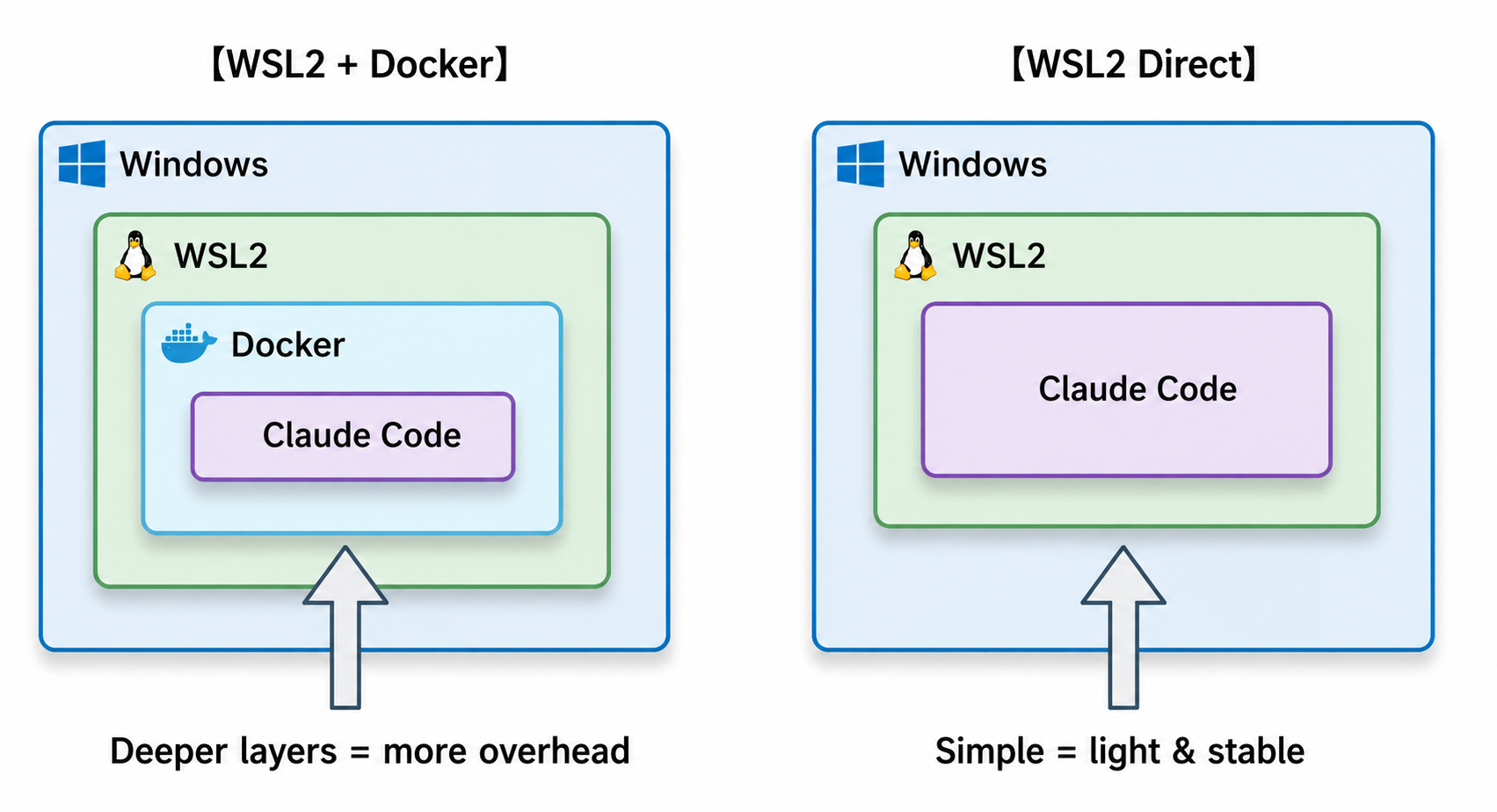
There is also the WSL2 + Docker option. Note, however, that Docker Desktop on Windows typically uses WSL2 as its backend, so in practice you end up with "Docker on top of WSL2." As an isolation design it is easy to reason about, but the overhead and operational cost grow, and things can feel sluggish.
Unless you have a strong reason, simply running the CLI directly on WSL2 with /mnt/c unmounted already gives you a setup that is quite accident-resistant in practice.
Why We Don't Recommend Installing Directly on Windows
Claude Code CLI can also be installed directly on Windows; running irm https://claude.ai/install.ps1 | iex in PowerShell makes installation itself easy.
However, from a security standpoint, we do not recommend it.
For all its convenience, Claude Code is a tool with strong privileges—reading and writing files, executing commands. It is designed to ask for confirmation before acting, but you can never fully rule out accidentally granting permission, or instructions drifting from your intent.
Installed directly on Windows, it can reach broadly into system and personal files with your everyday user privileges. To keep the blast radius small if something goes wrong, it is safer to lean toward a setup like WSL2, where the environment is isolated and can simply be deleted and rebuilt if it breaks.
The WSL2 /mnt/c Problem
WSL2 does separate Windows from Linux, but by default the Windows C: drive is automatically mounted at /mnt/c.
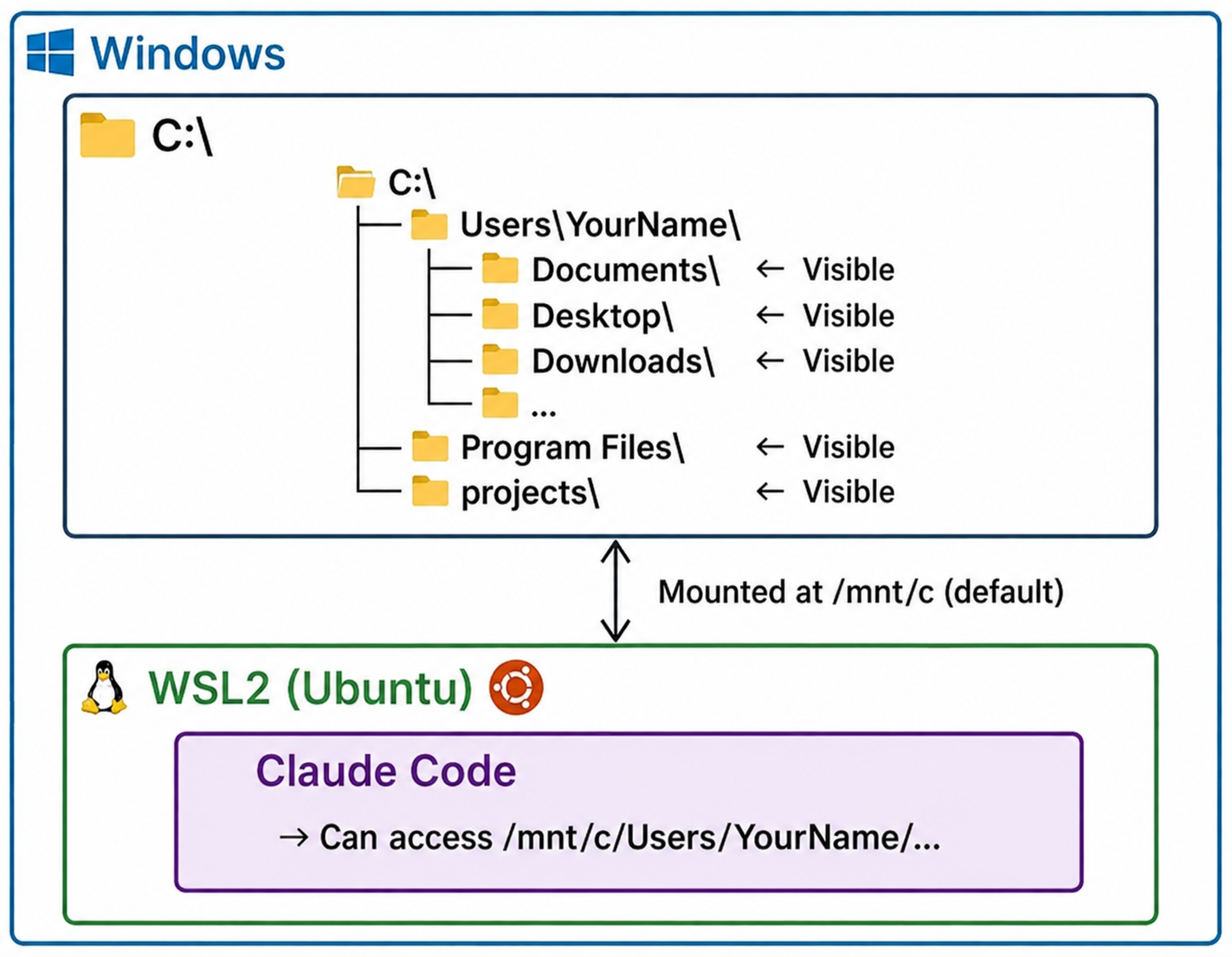
In other words, a Claude Code instance running inside WSL2 can end up able to reach Windows-side files via /mnt/c/Users/....
Your Documents, Desktop, and Downloads are all "visible"—which is why no one can flatly claim that "WSL2 is absolutely safe."
For personal development without much confidentiality, if you read the confirmation prompts carefully and confine the working directory, this rarely becomes a problem. If anything, the convenience of working directly in /mnt/c/projects/... is substantial.
On the other hand, if your work involves confidential code or documents, simply unmounting /mnt/c so that the Windows side is untouchable dramatically reduces the risk. This article covers that procedure as well.
Installation Steps
Basic Setup (/mnt/c mounted)
Let's start with the simplest method.
Step 1: Install WSL2
Run PowerShell as administrator and enter the following command.
wsl --install
Reboot if prompted. After startup, set your Ubuntu username and password.
Step 2: Install Claude Code CLI
Run the following in your Ubuntu (WSL2) terminal.
curl -fsSL https://claude.ai/install.sh | bash
That's all. No Node.js installation required.
Step 3: Set up PATH
After installation, you may see a message like the following.
⚠ Setup notes:
  • Native installation exists but ~/.local/bin is not in your PATH.
If so, run this command.
echo 'export PATH="$HOME/.local/bin:$PATH"' >> ~/.bashrc && source ~/.bashrc
Step 4: Verify it launches
claude --help
If the help text appears, you're done.
Accessing Windows Project Folders
From WSL2, you can access Windows folders via /mnt/c/....
cd /mnt/c/projects/myapp
claude
Git Configuration and Credential Sharing
For Claude Code to perform Git operations, Git needs to be configured on the WSL2 side. If /mnt/c is visible, though, you can reuse your Windows-side configuration as is.
First, if you already use Git on Windows, you can copy the configuration file.
cp /mnt/c/Users/YourWindowsUsername/.gitconfig ~/.gitconfig
That takes care of the username and email settings.
Even more convenient is credential sharing. If you use Git Credential Manager on Windows, WSL2 can use those credentials too. Configure it with the following command.
git config --global credential.helper "/mnt/c/Program\ Files/Git/mingw64/bin/git-credential-manager.exe"
With this in place, if you are already signed in to GitHub on the Windows side, you can push and pull from WSL2 without logging in again. When Claude Code runs git push, it proceeds smoothly without prompting for authentication.
If the path to Git Credential Manager differs on your machine, check it with the following command.
# Run in PowerShell
where.exe git-credential-manager
Secure Setup (/mnt/c unmounted)
For business use or confidential projects, we recommend this method.
Step 1: Create a dedicated WSL2 environment for Claude Code
First, create a dedicated environment separate from your existing WSL2 setup.
wsl --install -d Ubuntu-24.04 --name claude-code-env
This gives you a dedicated environment without touching your existing one. If it ever breaks or gets contaminated, just delete it and rebuild.
wsl --unregister claude-code-env
Step 2: Disable automatic mounting of /mnt/c
Enter the newly created environment.
wsl -d claude-code-env
/etc/wsl.conf is the file to edit.
sudo nano /etc/wsl.conf
Append the following.
[automount]
enabled = false
Ctrl + O to save, then Ctrl + X to exit.
Step 3: Restart WSL2
Run the following in PowerShell to fully stop WSL2.
wsl --shutdown
Enter the environment again.
wsl -d claude-code-env
/mnt/c should no longer be visible—verify it as follows.
ls /mnt/c
# OK if nothing is listed or you get an error
Step 4: Install Claude Code CLI
curl -fsSL https://claude.ai/install.sh | bash
Don't forget the PATH setup.
echo 'export PATH="$HOME/.local/bin:$PATH"' >> ~/.bashrc && source ~/.bashrc
Working with Projects
/mnt/c is not visible, so projects will live inside WSL2. The standard approach is to clone from GitHub or GitLab and work there.
cd ~
mkdir projects
cd projects
git clone https://github.com/yourname/yourproject.git
cd yourproject
claude
If you want to work on a project that lives in a Windows folder, we recommend pushing it to GitHub once and re-cloning it inside WSL2. You could temporarily mount /mnt/c by hand, but mounting it every time is tedious—and it defeats the security purpose.
In an environment with /mnt/c unmounted, it is cleaner to adopt a workflow that stays entirely inside WSL2.
Setting Up Git Entirely Inside WSL2
With /mnt/c invisible, Windows-side Git settings and credentials are unavailable. You need to configure Git from scratch inside WSL2.
Setting user information
First, set your basic user information. Use the name and email address you use on GitHub.
git config --global user.email "your-email@example.com"
git config --global user.name "Your Name"
Generating an SSH key and registering it with GitHub
With /mnt/c invisible, sharing Credential Manager over HTTPS is not possible. Instead, set up SSH-key authentication—which is also the better option security-wise.
First, generate an SSH key.
ssh-keygen -t ed25519 -C "your-email@example.com"
You will be asked for a passphrase. Set one for extra security, or press Enter for no passphrase.
Display the generated public key.
cat ~/.ssh/id_ed25519.pub
Copy what is displayed (the string beginning with ssh-ed25519 AAAA...).
Next, register this public key with GitHub. Open the following URL in your browser.
https://github.com/settings/keys
Click the "New SSH key" button, paste the public key you just copied, and save.
Connection test
Verify that everything is configured correctly.
ssh -T git@github.com
The first time, you will be asked "Are you sure you want to continue connecting?"—type yes. If you see "Hi yourname! You've successfully authenticated...", it worked.
Cloning a repository
Once your SSH key is set up, you can clone using the SSH-format URL.
git clone git@github.com:yourname/yourproject.git
On the GitHub repository page, click the "Code" button and choose the "SSH" tab to see the SSH-format URL.
Your Git environment now lives entirely inside WSL2. When Claude Code runs git push, it authenticates over SSH.
The Basic Claude Code + Git Workflow
Here is the basic flow of development with Claude Code.
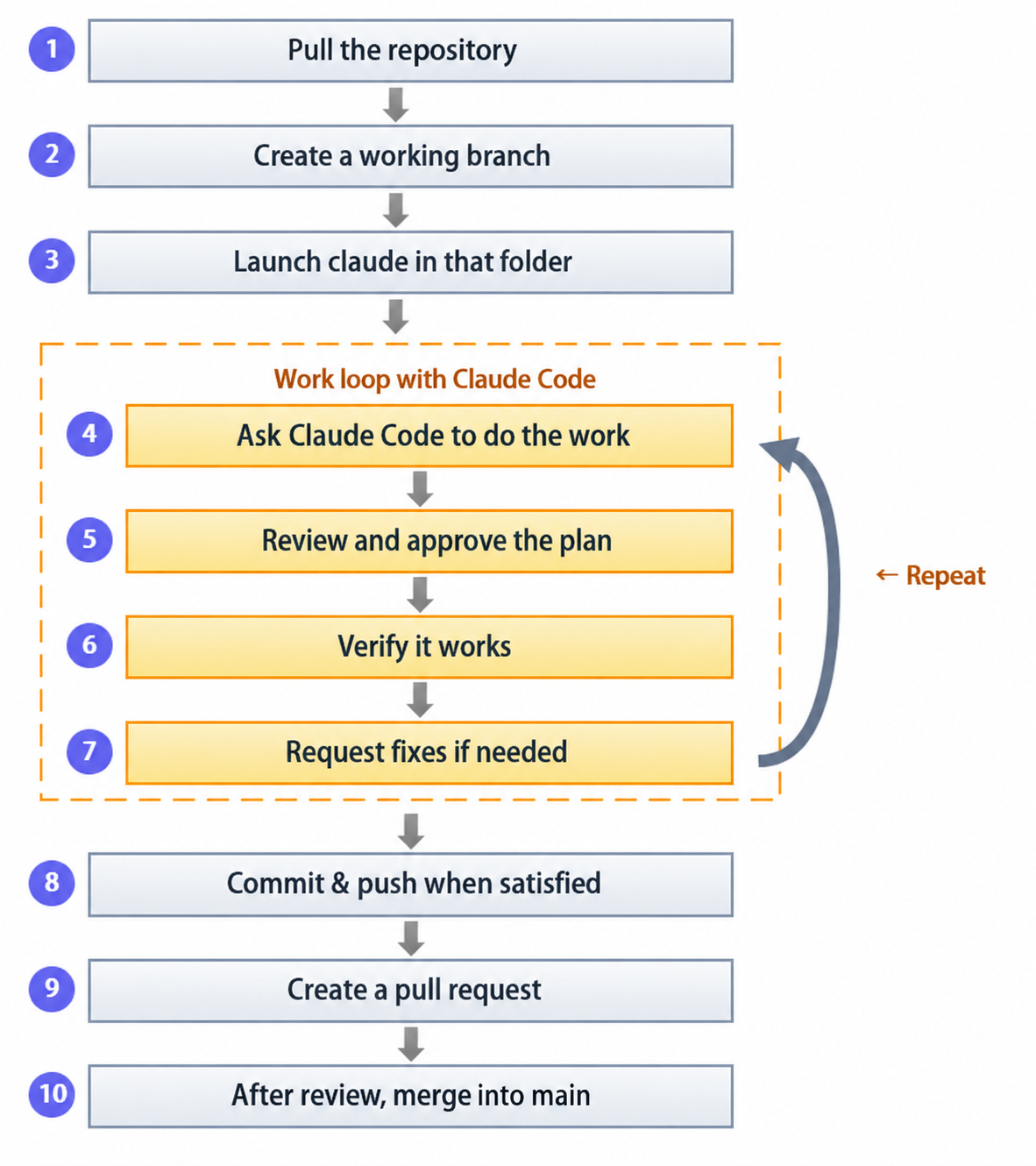
The actual commands look like this.
# 1. Get the latest
git pull origin main

# 2. Create a working branch
git checkout -b feature/new-function

# 3. Launch Claude Code
claude

# Steps 4-7 happen inside Claude Code

# 8. Commit & push (you can ask Claude Code to do this)
> Commit and push these changes

# 9. Create a pull request (you can ask Claude Code to do this)
> Create a PR
Examples in Action
The startup screen
claude command launches it, and you see a screen like this.
╭─── Claude Code v2.0.75 ─────────────────────────────────────────────────────╮
│                                                    │ Tips for getting started│
│                  Welcome back!                     │ Run /init to create a   │
│                                                    │ CLAUDE.md file with...  │
│                     * ▐▛███▜▌ *                    │                         │
│                    * ▝▜█████▛▘ *                   │                         │
│                     *  ▘▘ ▝▝  *                    │                         │
│                                                    │                         │
│              Opus 4.5 · Claude Max                 │                         │
│ ~/projects/my_project                              │                         │
╰─────────────────────────────────────────────────────────────────────────────╯
Plan mode (plan first, then execute)
Give it a complex task and it starts by drawing up a plan.
> "Implement the XX feature"

● Looks doable! Let me first explore the codebase to understand the current implementation.

● Explore(Explore feature implementation)
  ⎿  Done (34 tool uses · 97.6k tokens · 1m 46s)

● Exploration complete.

  Implementation points

  | Files to change | What to do               |
  |---------------|--------------------------|
  | file_a.js     | Add XX handling          |
  | file_b.js     | Add YY handling          |

  This looks feasible! Shall I enter plan mode and draw up a detailed implementation plan?

● Entered plan mode
  Claude is now exploring and designing an implementation approach.
Review and approve the plan, and implementation begins.
● User approved Claude's plan
  ⎿  Plan saved to: ~/.claude/plans/glowing-nibbling-truffle.md

● Plan approved! Starting implementation.
Git operations, delegated
When the implementation is done, you can ask it to commit and push as well.
> It works, go ahead and commit

● Bash(git status)
  ⎿  On branch feature/my-feature
     Changes to be committed:
       modified:   file_a.js
       modified:   file_b.js

● Bash(git add ...)
  ⎿  [feature/my-feature 9eeb56a] Add feature
      2 files changed, 50 insertions(+), 6 deletions(-)

● Done!

  - Commit: 9eeb56a
  - Branch: feature/my-feature
  - Push: success

  To create a PR: https://github.com/your/repo/pull/new/feature/my-feature
A common first-time error: Git user configuration
When it tries to commit, you may see an error like this.
● Bash(git commit ...)
  ⎿  Error: Exit code 128
     Author identity unknown

     *** Please tell me who you are.

     Run

       git config --global user.email "you@example.com"
       git config --global user.name "Your Name"

● Git user identity is not configured. Set it with the following commands

  git config user.email "your-email@example.com"
  git config user.name "Your Name"
No need to panic when this appears. Configure Git in another terminal, and Claude Code picks it up immediately—no restart required.
> Try again, I've set it up

● Bash(git commit ...)
  ⎿  [feature/my-feature 9eeb56a] Add feature

● Done!
If You Prefer a GUI
If the CLI is not your thing, there is also a VS Code extension.
In VS Code, press Ctrl + Shift + X to open Extensions and search for "Claude Code." Install the extension by Anthropic and you get a chat UI similar to the web version.
Conclusion
In this article, we organized the options for running Claude Code on Windows by use case and walked through the installation steps.
If you just want a first taste, the web version is the shortest path, but long sessions can appear to stall—so for stability, the CLI version is the safer bet. For personal development, installing directly into WSL2 and reaching Windows-side projects via /mnt/c as needed is a practical arrangement.
When business or confidentiality is involved, we believe the best balance of convenience and safety is a dedicated WSL2 environment for Claude Code, with /mnt/c auto-mounting disabled and Git operations kept entirely inside WSL2.
Claude Code is less an all-purpose automaton than a tool that removes friction from development. Choose the setup that fits your use case, and start from a configuration you can "keep using with confidence".
Beyond the first step.
Once you have it running, the next question is how to get the most out of it. In agent-first development, there is still no settled "right answer." We have pushed Claude Code hard in our own development and systematized what works and where the pitfalls lie.
Our engineers—veterans with decades on the front lines of software engineering—have tackled this in earnest, and we deliver that battle-tested knowledge to you.
Explore our Claude Code enablement services →See you next time!



