
Why the Codex CLI Update Failed on Windows with “Get-FileHash Not Found”—and How We Fixed It
Codex CLI’s Windows update failed because Get-FileHash could not be found. We traced the inherited PSModulePath and successfully updated from 0.154.0 to 0.156.1 using PowerShell 7.

Hello!
When we launched Codex CLI on Windows, it displayed an “Update available!” prompt. But choosing “Update now” failed and closed Codex itself. The error said that Get-FileHash could not be found.
We traced the problem to
the module search path inherited when Codex, launched from PowerShell 7, invoked Windows PowerShell 5.1 to run the update.
The shell we normally used and the shell handling the update were different.
Running the official installer with PowerShell 7
successfully updated Codex CLI from 0.154.0 to 0.156.1.
This article walks through the startup prompt, how we isolated the cause, the update procedure that worked, and the change we made to our launcher to prevent the same problem.
We tested this on September 23, 2026, using Codex CLI installed through OpenAI’s official Windows standalone installer. The npm package and other installation methods were outside the scope of this investigation.
1. Choosing “Update now” caused the update to fail
The startup prompt was as follows. The text below reproduces what appeared on screen.
Codex CLI startup prompt
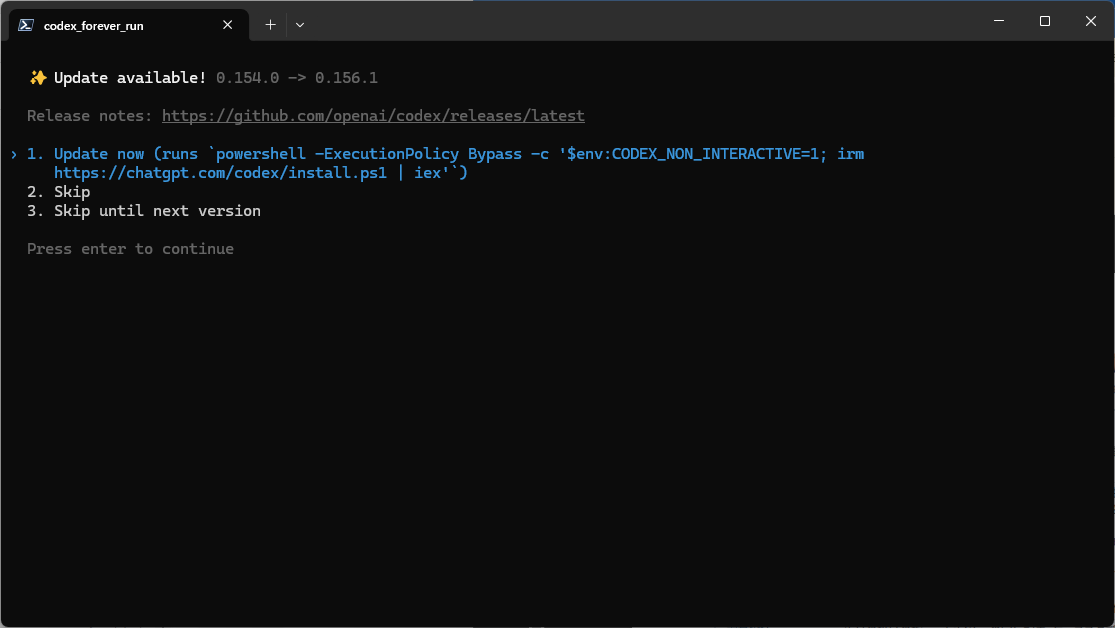
✨ Update available! 0.154.0 -> 0.156.1

  Release notes: https://github.com/openai/codex/releases/latest

› 1. Update now (runs `powershell -ExecutionPolicy Bypass -c '$env:CODEX_NON_INTERACTIVE=1; irm
     https://chatgpt.com/codex/install.ps1 | iex'`)
  2. Skip
  3. Skip until next version

  Press enter to continue
Pressing Enter on “1. Update now” runs the update command shown in the prompt.
In our case, the process reached the download stage, then stopped with the following error.
Relevant output from the failed update (Japanese diagnostic text translated into English)
==> Updating Codex CLI from 0.154.0 to 0.156.1
==> Detected platform: Windows (x64)
==> Resolved version: 0.156.1
==> Downloading Codex CLI
WARNING: Could not download or verify https://releases.openai.com/codex/releases/0.156.1/codex-package_SHA256SUMS;
retrying from GitHub Releases.
iex : The term 'Get-FileHash' is not recognized as the name of a cmdlet, function, script file, or operable program.
The update command exited with code 1, and the launcher displayed
“Codex exited with code 1. The terminal is kept open.”
Because a download warning appeared first, it initially looked like a network or release-server problem. The more useful clue, however, was the final error: Get-FileHash could not be found.
2. Two versions of PowerShell were installed on the same PC
Here is the environment we checked.
| Item | Observed value |
|---|---|
| OS | Windows x64; reported OS build 10.0.26200 |
| Shell used to launch Codex | PowerShell 7.5.5 |
| Shell invoked by the update command | Windows PowerShell 5.1.26100.8115 |
| Codex CLI | 0.154.0 before the update; 0.156.1 afterward |
| Installation method | OpenAI’s official Windows standalone installer |
Look closely at the startup prompt: the update command begins with powershell. On this PC, that resolved to the Windows PowerShell 5.1 executable. PowerShell 7, which we normally used to launch Codex, has a different executable name: pwsh.exe.
You can check the current shell and the Windows PowerShell invoked by the update command separately. The first line below reports the current shell’s version. The second directly launches Windows PowerShell and checks its version and whether the command is available. Because this is a direct launch, use the method in Section 3 to check whether the failure also occurs when another process sits between the two shells.
Check the environment from a PowerShell 7 terminal
$PSVersionTable.PSVersion
powershell.exe -NoProfile -Command '$PSVersionTable.PSVersion; Get-Command Get-FileHash'
The launch chain observed on this PC (a description of the process flow, not a reproduced screen)
PowerShell 7 (pwsh.exe)
  └─ Codex CLI (codex.exe)
       └─ Windows PowerShell 5.1 (powershell.exe)
            └─ Official install.ps1
                 └─ SHA-256 verification using Get-FileHash
Get-FileHash computes hashes for files and other input. It belongs to the Microsoft.PowerShell.Utility module and is a standard command available in Windows PowerShell 5.1. Microsoft’s Get-FileHash reference
The confusing part was that Get-FileHash was available when we launched Windows PowerShell directly from PowerShell 7. This was not simply a command missing from version 5.1. We needed to find out what changed when the updater launched it.
3. The cause: PSModulePath inherited through an indirect launch
PSModulePath is the environment variable listing the folders PowerShell searches for modules. In the child process where the problem occurred, PowerShell 7 module folders remained ahead of the standard Windows PowerShell module folders.
Example of the inherited search path (username replaced)
C:\Users\<user>\Documents\PowerShell\Modules
C:\Program Files\PowerShell\Modules
C:\Program Files\PowerShell\7\Modules
C:\Program Files\WindowsPowerShell\Modules
C:\Windows\System32\WindowsPowerShell\v1.0\Modules
PowerShell 7 removes its own module paths when it launches Windows PowerShell directly. When another program sits between them, however, the environment variable can be inherited without that adjustment. Microsoft documents this distinction between direct and indirect launches in about_PSModulePath.
In that situation, Windows PowerShell may find a PowerShell 7 module with the same name first and fail to load the command. On our PC, changing only the launch chain and the inherited environment changed the result, even though the executable stayed the same.
| Launch method | Result |
|---|---|
| Windows PowerShell launched directly from PowerShell 7 | Get-FileHash resolved successfully |
| Launched through another process while inheriting PSModulePath | Get-FileHash not recognized; exit code 1 |
| Same indirect launch with PSModulePath cleared | Command resolved successfully; exit code 0 |
The failing launch also included -NoProfile. Skipping profiles does not remove environment variables inherited from the parent process. In this case, -NoProfile alone did not resolve the problem.
3.1 Checking the difference without running an update
We reproduced the same difference with the following two commands in PowerShell 7. They insert cmd.exe between the shells and compare what happens when Windows PowerShell receives PSModulePath versus when it does not.
Diagnostic commands to run in PowerShell 7
# Launch through cmd.exe, inheriting the parent PSModulePath
cmd /d /c 'powershell.exe -NoProfile -Command "Get-Command Get-FileHash"'

# Clear PSModulePath in cmd.exe before launching Windows PowerShell
cmd /d /c 'set PSModulePath=&& powershell.exe -NoProfile -Command "Get-Command Get-FileHash"'
On this PC, the first command exited with code 1 and the second with code 0. Both only check whether the command can be found; neither updates Codex. The change made by set is also limited to that child process. It does not change the environment variables saved in Windows.
We also used Get-FileHash in the child process with the cleared search path to compute the SHA-256 hash of abc. The result matched the known value.
Hash calculation output
BA7816BF8F01CFEA414140DE5DAE2223B00361A396177A9CB410FF61F20015AD
This reproduction depends on how the PowerShell versions coexist and where their modules are installed. It does not mean the first command will fail on every Windows PC.
4. Running the official installer with PowerShell 7 worked
After isolating the cause, we ran the official installer directly with the PowerShell 7 installation already on the PC. We had confirmed that Get-FileHash was available in that shell.
The procedure downloads the official script, runs it with PowerShell 7, and checks the installed version. The commands below assume PowerShell 7 is installed in its standard location. That was where the executable was installed on our PC.
Run in a PowerShell 7 terminal
$installerPath = Join-Path $env:TEMP 'codex-install.ps1'

$previousNonInteractive = [Environment]::GetEnvironmentVariable('CODEX_NON_INTERACTIVE', 'Process')
try {
    Invoke-WebRequest -Uri 'https://chatgpt.com/codex/install.ps1' -OutFile $installerPath -ErrorAction Stop
    $env:CODEX_NON_INTERACTIVE = '1'
    & 'C:\Program Files\PowerShell\7\pwsh.exe' `
        -NoProfile -ExecutionPolicy Bypass `
        -File $installerPath -Release latest

    if ($LASTEXITCODE -ne 0) {
        throw "Codex update failed: exit=$LASTEXITCODE"
    }

    codex --version
}
finally {
    [Environment]::SetEnvironmentVariable('CODEX_NON_INTERACTIVE', $previousNonInteractive, 'Process')
}
For the initial update from 0.154.0, we saved the script as bin/codex-install-official.ps1 in the project folder before running it. The version shown here uses the temporary folder instead. We also ran the command block published in the Japanese version on the updated PC and confirmed exit code 0 and codex-cli 0.156.1. The version selected by latest depends on the date you run it; on our test date, it was 0.156.1.
CODEX_NON_INTERACTIVE=1 tells the installer to use default answers for interactive prompts. We save its previous value and restore it afterward. The official script’s SHA-256 verification remains intact. OpenAI’s installer environment-variable documentation
Downloading the script, running it, and checking the installed version are all inside the same try block. The download uses -ErrorAction Stop so that a failed download cannot lead to running an old file or reporting an installed version as if the update succeeded. Run the code above as one complete block.
Output from the successful update from 0.154.0 (intermediate path output omitted)
==> Updating Codex CLI from 0.154.0 to 0.156.1
==> Detected platform: Windows (x64)
==> Resolved version: 0.156.1
==> Downloading Codex CLI
Codex CLI 0.156.1 installed successfully.
codex-cli 0.156.1
This confirmed that the installed executable was now version 0.156.1. An already-running Codex session may still be using the old process, however. Updating the executable and closing and reopening an active session are separate steps.
5. Preventing the launcher from passing on the module search path
In this environment, we launched Codex from a PowerShell script, so a later update could follow the same launch chain. We changed the launcher to clear the process-level PSModulePath only while Codex is running.
The following is an excerpt of the actual change. $codexExecutable is the executable resolved by the launcher, and $codexArguments contains the existing launch arguments. This excerpt is not intended to run on its own.
Changed section of launch-codex.ps1
$modulePathBeforeCodex = [Environment]::GetEnvironmentVariable('PSModulePath', 'Process')
try {
    [Environment]::SetEnvironmentVariable('PSModulePath', $null, 'Process')
    & $codexExecutable @codexArguments
    $codexExitCode = $LASTEXITCODE
}
finally {
    [Environment]::SetEnvironmentVariable('PSModulePath', $modulePathBeforeCodex, 'Process')
}
When Codex subsequently launches Windows PowerShell, the child shell can build its standard module search path. Only the process-level environment variable is changed. Values saved as user or system environment variables remain unchanged.
finally restores the original value both after a normal exit and when Codex returns an error exit code. It does not guarantee that cleanup will run if the PowerShell process itself is forcibly terminated.
This approach also stops any custom module search paths added only to the current process from reaching Codex. If your workflow relies on such paths, check that the required modules remain available before adopting this change.
We tested the modified launcher by having it start a native test program, which then launched Windows PowerShell. We checked the child process’s hash calculation, restoration of the parent environment after normal and error exits, and restoration when the original value was empty.
We have not repeated the update by selecting “Update now” again in the original interactive Codex prompt. What we verified was the indirect-launch failure and its resolution, a successful update through the official installer, and the environment handling in the actual launcher.
6. The download warning alone did not establish a network failure
Returning to the original log, why did a problem with Get-FileHash first produce a “Could not download or verify” warning?
At the time of our investigation, the official installer used Get-FileHash to verify downloaded files. Downloading and verification were handled within the same exception-handling flow, which retried through GitHub Releases after a failure.
That means a verification failure after a download can also lead to the same warning. The beginning of this log was not enough to conclude that the network request had failed. Reading on to see which command failed gave us a useful direction for the investigation.
7. Summary
The cause in our environment was a module search path inherited by Windows PowerShell 5.1 when it was launched indirectly from PowerShell 7. Running the official installer directly with PowerShell 7 successfully updated Codex CLI from 0.154.0 to 0.156.1.
To prevent the same problem, we changed the launcher to clear PSModulePath only while Codex is running, then restore it afterward. If a standard command works in one terminal but cannot be found in another launch context, compare the PowerShell versions, the launch chain, and PSModulePath.
See you next time!
References
- Microsoft Learn — Get-FileHash (Windows PowerShell 5.1)
- Microsoft Learn — about_PSModulePath and launching Windows PowerShell
- OpenAI — Codex installer environment variables
- OpenAI — Official Windows installer script
Related reading
If you have encountered a “command not found” error while installing a CLI on Windows, here is another case: Fixing "claude is not recognized" After Installing Claude Code on Windows with irm
![[AI×CAD] Part 5: Preserve the "Why" That CAD Alone Cannot Explain — A Practical Approach to Design Knowledge and Local LLMs](/content/images/size/w600/2026/09/ai-cad-step-viewer-part5-en.png)

![[AI×CAD] Part 4: Review a Design with AI Without Sending 3D Geometry to the LLM — Analyze First, Then Pass Structured Results](/content/images/size/w600/2026/09/ai-cad-step-viewer-part4-en.png)
