
Understanding Active Directory: The Technology Behind Enterprise AI Security - Part 7: Security and Best Practices


Hello! In this seventh installment of the series, we cover Security and Best Practices - considerations for production environments.
Series overview
- Chapter 1: Understanding the basics - Fundamentals of Active Directory and Kerberos/NTLM authentication
- Chapter 2: Building a domain environment - Setting up a lab environment
- Chapter 3: Joining clients and servers to the domain - Domain join in detail
- Chapter 4: Proxy servers and Integrated Windows Authentication
- Chapter 5: Browser configuration and authentication - Settings for each browser
- Chapter 6: Troubleshooting - Common problems and solutions
- [★This installment★] Chapter 7: Security and best practices - Considerations for production environments
- Chapter 8: Practical configuration examples - Integration with AI security tools
Chapter 7: Security and Best Practices
Part 7 is about bringing the authentication infrastructure built in the previous installments to a state where it can run in production.
In the first half, 7.1, we harden the entry points: how to handle Basic authentication, which is practically plaintext; how to bring the password policy in line with current recommendations; and how far to narrow administrative privileges. In the second half, 7.2, we build the mechanisms for noticing that someone has gotten in: which logs to collect, how to spot anomalies, and how to check things regularly.
Each section opens with a four-panel manga. The six characters are an auditor, an IT manager, a CISO, a developer, a help desk member, and a trainer, and all the scenes are fictional. All numbers and recommendations in the text are based on official Microsoft documentation, RFCs, and NIST publications, and the sources are listed at the end of each section.
7.1 Managing Credentials
7.1.1 Security Risks of Basic Authentication
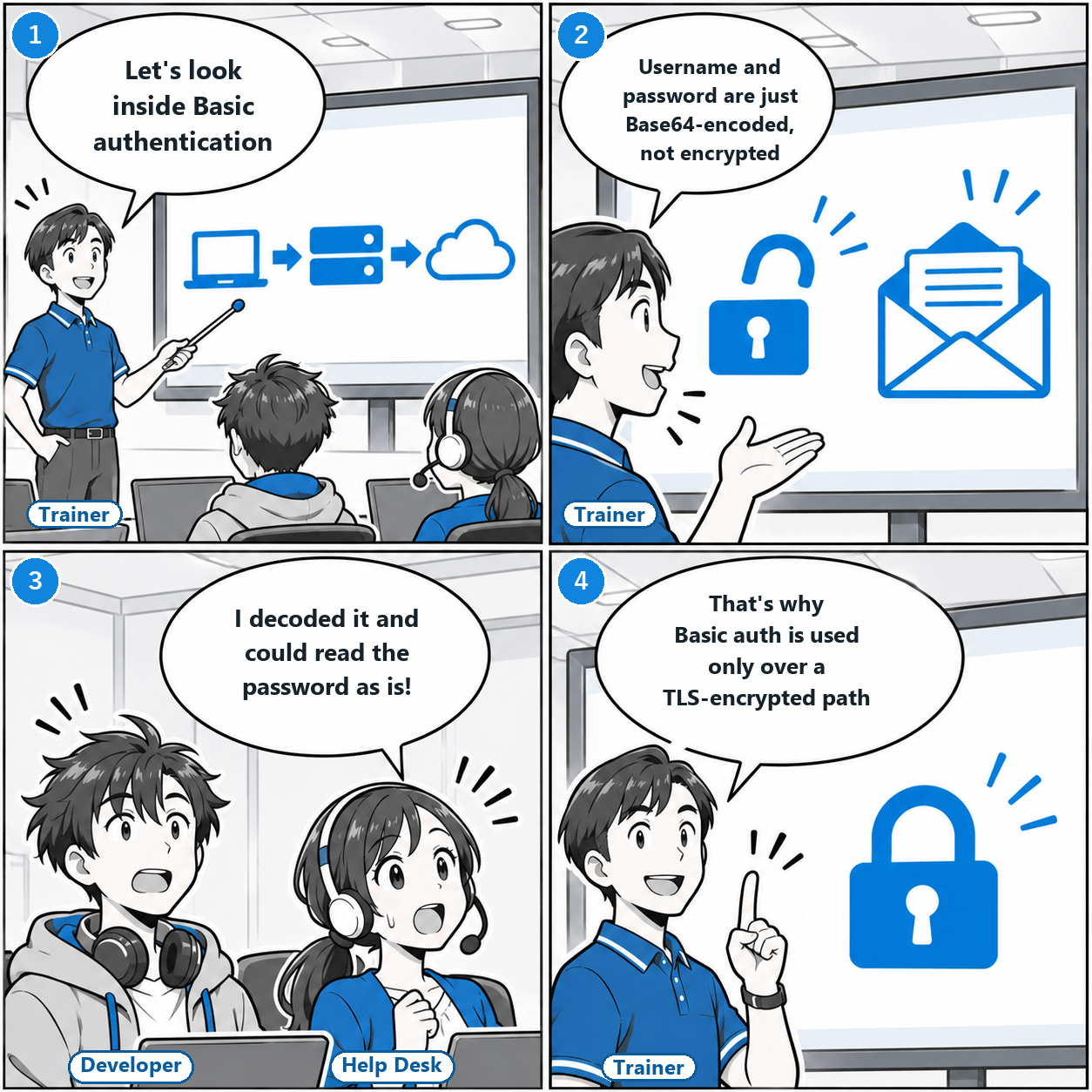
- TrainerLet's look inside Basic authentication
- TrainerUsername and password are just Base64-encoded, not encrypted
- Help DeskI decoded it and could read the password as is!
- TrainerThat's why Basic auth is used only over a TLS-encrypted path
Basic authentication has the simplest mechanism of all, and without TLS it sends the username and password in a form anyone can reverse.
The reason is that it does not encrypt the credentials. RFC 7617 specifies that the client sends the username and password joined by a colon and encoded in Base64, and it also states that the scheme is not considered secure unless used together with an external secure system such as TLS. Base64 is an encoding that anyone can reverse, not encryption.
- The credentials are
user-id:passwordencoded in Base64. This is the same as sending them in cleartext over the network - It is not a secure method of user authentication unless protected by TLS or similar
- It SHOULD NOT be used without enhancements such as HTTPS
- A proxy can require the same scheme. It responds with 407, and the client answers with the
Proxy-Authorizationheader
Where the credentials get stolen
In the setup used throughout this series, traffic goes from an office PC through the proxy to external generative AI services. The place where credentials get stolen is not between the proxy and the external site, but between the PC and the proxy.
If the external site uses HTTPS, the content is encrypted. But authentication to the proxy happens in the CONNECT request, before the HTTPS tunnel is built. RFC 9110 says proxy authentication is used to check permission to establish a tunnel, and its CONNECT example includes Proxy-Authorization. The client may send the credentials after receiving the proxy's 407 response, or attach them from the very first request. Either way, if the segment between the PC and the proxy is not protected by TLS, anyone who can observe that segment sees the credentials as is.
| Where it can be observed | What happens | How to protect it |
|---|---|---|
| Same network | On public Wi-Fi, or when an attacker intercepts the path with ARP spoofing, traffic between the PC and the proxy can be read | Use TLS for the connection to the proxy itself. From outside the office, protect the path with a VPN and still use TLS for the proxy connection inside it (a VPN protects the path; it does not replace encryption of the proxy connection) |
| Proxy logs | If the proxy is set to log request headers as is, the Base64 credentials end up in the logs | Do not write the header to logs. Restrict who can read the logs |
| Fake proxy | If users are lured to a "free proxy" or a fake auto-configuration (PAC) file, they hand their credentials to the attacker | Distribute proxy settings through Group Policy and do not let users change them |
Why Basic authentication remains, and how to keep it safely
As we saw in Part 4, when the proxy offers Negotiate, NTLM, and Basic, which one is used depends on the client's implementation and settings. Within Negotiate, Kerberos is preferred, and NTLM is chosen when Kerberos is not available. Falling back to Basic is a separate mechanism: it depends on whether the proxy offers Basic and whether the client is configured to accept it. Basic is often kept as a fallback for devices not joined to the domain and for software that does not support integrated authentication.
7.1.2 Password Management Best Practices
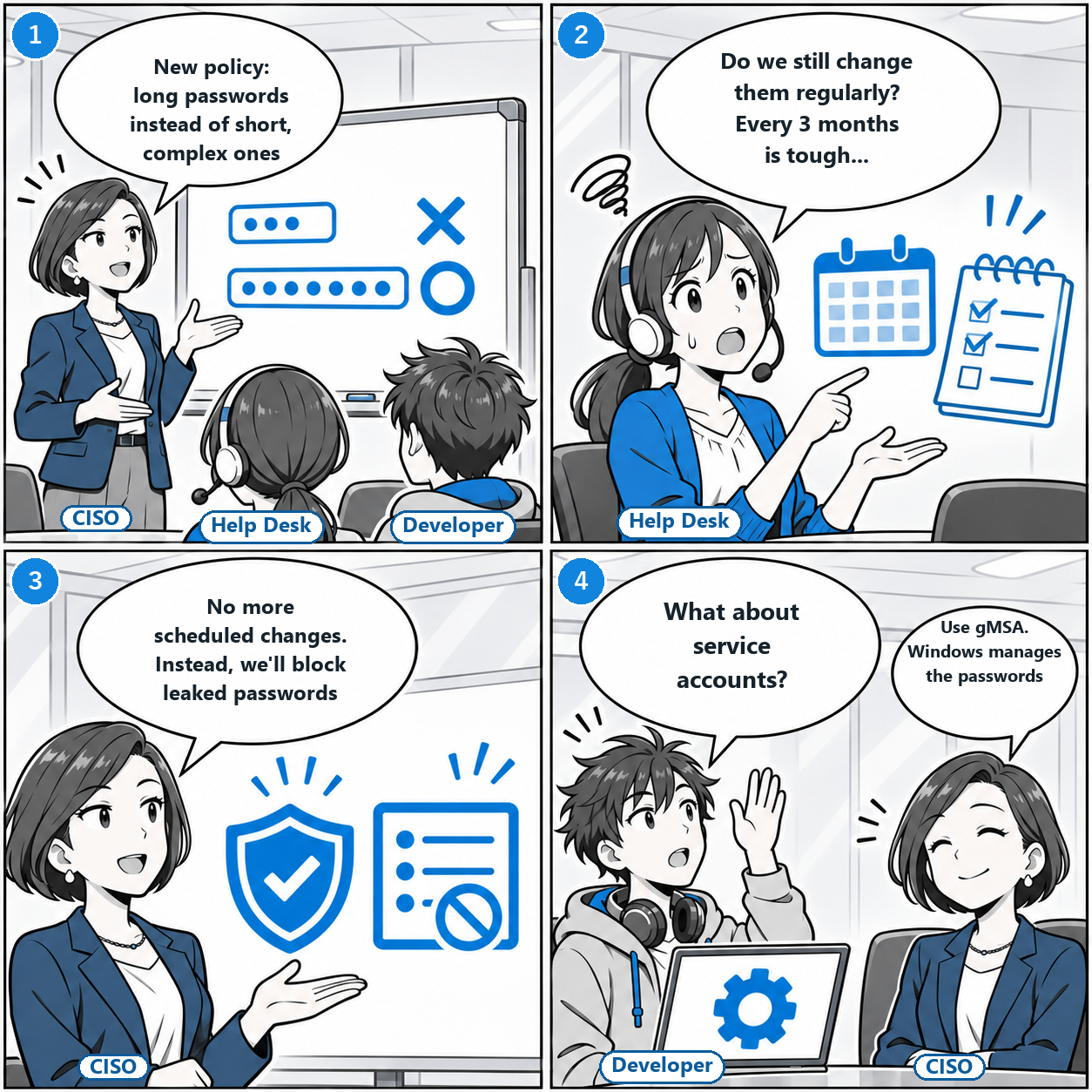
- CISONew policy: long passwords instead of short, complex ones
- Help DeskDo we still change them regularly? Every 3 months is tough...
- CISONo more scheduled changes. Instead, we'll block leaked passwords
- DeveloperWhat about service accounts?
- CISOUse gMSA. Windows manages the passwords
Over the past few years, password policy has shifted from "make it complex and change it often" to "make it long, do not force changes, and ban the ones that have leaked."
NIST and Microsoft point in the same direction. The latest version of NIST SP 800-63B requires passwords used as a single factor to be at least 15 characters, does not impose composition rules such as mixing character types, does not require periodic changes, and requires checking against lists of known compromised passwords. For Microsoft 365 accounts, Microsoft recommends a minimum of 14 characters and recommends not setting an expiration for cloud-only accounts. These are recommendations for Microsoft 365, not rules that apply directly to on-premises Active Directory, but the direction is the same.
| Item | Old common practice | NIST SP 800-63B | Microsoft 365 recommendation |
|---|---|---|---|
| Length | 8 characters | 15 or more as a single factor. 8 or more as part of multi-factor | 14 or more characters |
| Mixed character types | Force uppercase, lowercase, digits, and symbols | No composition rules (SHALL NOT) | Explains that length and symbol requirements push passwords into predictable patterns |
| Periodic changes | Change every 90 days | Not required. Force a change only when there is evidence of compromise | No expiration recommended for cloud-only accounts |
| Blocklist | None | Reject passwords found in lists of compromised or commonly used passwords | Ban easy-to-guess passwords |
| Maximum length | Short upper limit | Accept at least 64 characters | |
| Multi-factor | Optional | States explicitly that passwords are not phishing-resistant | Make multi-factor authentication registration mandatory |
Why the change? The more constraints people face, the more they create passwords that follow the same pattern. Microsoft explains that requirements for length, symbols, and changes tend to push passwords into predictable patterns. Attackers know the "one uppercase letter, one symbol, digits at the end" pattern well.
What you can set in the Active Directory password policy
The domain password policy lives at the following location in Group Policy. The defaults are values that have been used for a long time, not today's recommended values.
Computer Configuration
└ Windows Settings
  └ Security Settings
    └ Account Policies
└ Password Policy| Setting | Default domain policy | Direction of review |
|---|---|---|
| Enforce password history | 24 passwords | Keep as is. Prevents reuse |
| Maximum password age | 42 days | Move toward ending periodic changes. Before you stop them, first set up the practice of forcing a reset when a compromise is detected |
| Minimum password age | 1 day | Keep as is. Prevents cycling through the history at once to get back to the old password |
| Minimum password length | 7 characters | Set your organization's target and raise it. NIST's 15 characters (single factor) and Microsoft 365's 14 characters are good guides. Microsoft's best practice also recommends 8 or more |
| Password must meet complexity requirements | Enabled | Enabled by default (at least 3 character types, and must not contain the account name or display name). Since NIST does not impose composition rules, consider a transition to disabling it once you have enough length and a blocklist in place |
| Store passwords using reversible encryption | Disabled | Keep it disabled. Enabling it stores passwords in what is effectively plaintext |
This table covers the default domain policy. Since Windows Server 2008, fine-grained password policies (PSOs) let you apply a different policy to specific groups or users, so you can, for example, require longer passwords only for administrators and service accounts. The audit in 7.2.3 checks PSOs as well.
Service accounts should not be managed by people
Accounts used by applications and services have problems that differ from those of human accounts. There are three: the service stops when the password expires, the same password stays in use for years because people fear changing it, and the password is written in plaintext in configuration files.
Windows Server has an account type for this. A group Managed Service Account (gMSA) has its password managed automatically by Windows and can be used on multiple servers. Administrators never need to know the password. It works with Windows services, scheduled tasks, and other components that support gMSA, so for some applications you need to check whether they support it.
- 1Prepare a KDS root key (only once, the first time in the forest). In a production environment with multiple domain controllers, wait up to 10 hours after creating it for the key to replicate to all DCs before creating a gMSA
- 2Create a security group for the computers allowed to retrieve the password (WebServers in the example) and add the computer accounts of the target servers. After adding them, restart each server or have it obtain new Kerberos tickets so the group membership takes effect
- 3Create the gMSA. Pass
New-ADServiceAccounta name, a DNS host name, and the group from step 2 - 4Install the gMSA on the server that uses it, and set the service's "Log On" account to
DOMAIN\name$(leave the password fields empty)
# 1. KDS root key (once per forest). Create it only if none exists. With multiple DCs in production, wait 10 hours after creating it
if (-not (Get-KdsRootKey)) {
  Add-KdsRootKey -EffectiveImmediately
}
# 1'. Only to skip the 10-hour wait in a lab (a single DC). Do not run this in production
Add-KdsRootKey -EffectiveTime ((Get-Date).AddHours(-10))# 2. Create the gMSA. Only computers in the WebServers group can retrieve the password
New-ADServiceAccount -Name "svc_webapp" `
-DNSHostName "svc_webapp.example.local" `
-PrincipalsAllowedToRetrieveManagedPassword "WebServers"
# 3. On the server that uses it
Install-ADServiceAccount -Identity "svc_webapp"
Test-ADServiceAccount -Identity "svc_webapp" # True means it can be used-EffectiveImmediately also only "makes the key effective right away"; it does not guarantee that replication to all DCs has finished.What lies beyond passwords
However well you tune the policy, a password is a secret you hand over to wherever you type it, so typing it into a fake sign-in page gets it stolen. NIST also states plainly that passwords are not phishing-resistant.
In an Active Directory environment, there are three paths toward authentication that does not rely on passwords. None of them "sends a secret." Instead, they "sign with a key held inside an authenticator" (the device's security module, a smart card, or a security key). Phishing resistance comes from two things: the private key never leaves the authenticator, and the key is bound to the legitimate relying party, so it does not respond to a fake one.
| Method | Something you have | Something you know or are | Phishing-resistant | Where it fits |
|---|---|---|---|---|
| Smart card + PIN | A physical card holding a certificate | PIN | Yes | Long-standing Active Directory environments. Requires a certificate infrastructure (AD CS) |
| Windows Hello for Business | A private key protected by the device's security module | PIN or biometrics. The PIN never leaves the device | Yes | Company-issued Windows PCs. A path to passwordless |
| FIDO2 security key (passkey) | A USB/NFC device holding the key | PIN or biometrics | Yes | Heavily regulated industries and privileged users. Recommended by Microsoft |
It is also worth noting how this relates to integrated Windows authentication at the proxy, the main subject of this series. Even when users sign in with Windows Hello for Business or a smart card, Kerberos ticket issuance afterward is unchanged, so Negotiate authentication at the proxy keeps working. The only thing that changes is what is presented at the first sign-in. On the other hand, if you leave the Basic authentication fallback in place, it still needs a password, which undercuts the point of going passwordless. That is why 7.1.1 recommended limiting the fallback.
7.1.3 Minimizing Administrative Privileges
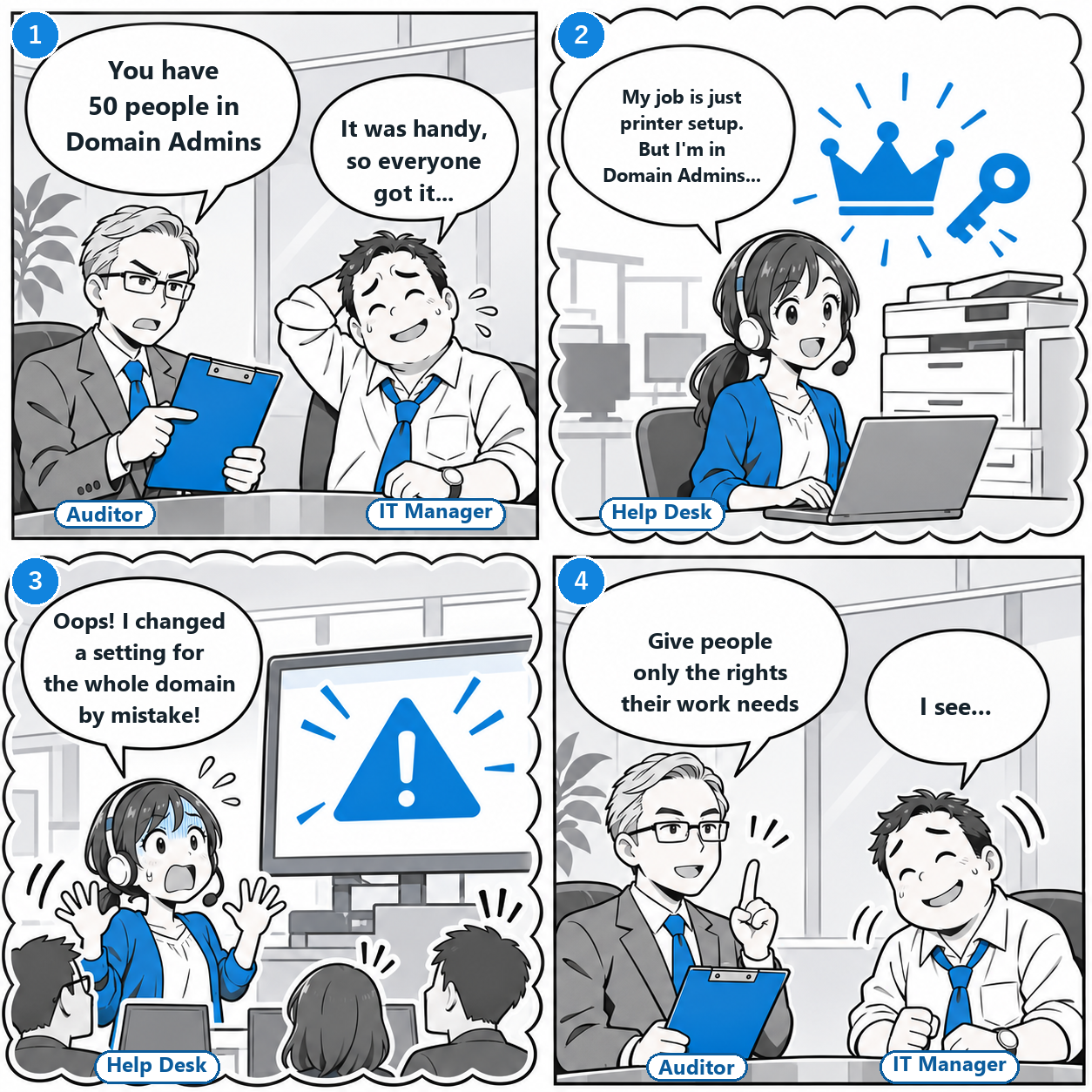
- AuditorYou have 50 people in Domain Admins
- IT ManagerIt was handy, so everyone got it...
- Help DeskMy job is just printer setup. But I'm in Domain Admins...
- Help DeskOops! I changed a setting for the whole domain by mistake!
- AuditorGive people only the rights their work needs
- IT ManagerI see...
Grant administrative privileges only to the extent the task requires, and only for as long as it is needed.
This is the principle Microsoft has consistently recommended for running Active Directory. Top-level groups such as Domain Admins are containers for emergencies, not for everyday work.
- Domain Admins membership is needed only in "break-glass" situations that require elevated rights on every computer in the domain, and for domain-wide changes
- Enterprise Admins should have 0 members day to day. Add members temporarily only when building a forest or setting up trusts between forests
- Do not sign in to less privileged systems (member servers or PCs) with privileged accounts
- Configure auditing so that alerts are raised when Domain Admins membership or attributes change
Why 50 people in Domain Admins is dangerous
There are two reasons.
The entry points multiply to 50. If the privileged credentials of just one of the 50 are stolen, the attacker gains a foothold to take over the entire domain. On top of that, signing in to an ordinary PC with a Domain Admins account leaves traces of the credentials on that PC, and they can be extracted if the PC is compromised. This is why Microsoft says not to sign in to less privileged systems with privileged accounts.
Mistakes spread to everything. Even a staff member who only installs printer drivers can touch Group Policy and the schema if they are in Domain Admins. When privileges exceed the scope of the job, nothing stops a mistake.
Grant rights per task (delegation)
In the manga's example, managing printers does not need Domain Admins. There are ways to grant only the scope required for each task.
| Task | Common grant | Recommended approach |
|---|---|---|
| Reset passwords for users in a department | Domain Admins | Delegate only "Reset password" on that department's OU |
| Join a department's new PCs to the domain | Domain Admins | Delegate "Create computer objects" on that department's OU |
| Manage printers | Domain Admins | Admin rights limited to the target print server (that server's local groups, or the printer's manage permissions) |
| Run backups and restores | Domain Admins | Limit the scope with local rights on the target servers, or with roles in the backup product |
| Change domain-wide settings | Standing Domain Admins | Add to Domain Admins only for the task, and remove when done |
Separate by tier (the Tier model)
Once delegation has narrowed rights per task, the next step is to decide which tier's credentials may be used on which tier. The Tier model that Microsoft has presented for Active Directory splits what you protect into three tiers and does not allow upper-tier credentials to be used on lower tiers.
| Tier | What it protects | Who manages it | Rules |
|---|---|---|---|
| Tier 0 | Domain controllers, AD, identity infrastructure | A very small dedicated team | Dedicated admin accounts and dedicated devices (PAWs). Never sign in to other tiers |
| Tier 1 | Member servers, business applications | Server administrators | Do not use Tier 0 credentials. Do not touch Tier 0 settings |
| Tier 2 | Client PCs | Help desk, PC administrators | Do not touch servers |
Implementation starts with creating dedicated admin accounts and groups for each tier (for example, Tier0-Admins, Tier1-ServerAdmins, and Tier2-WorkstationAdmins). Then use user rights assignment in Group Policy so that each tier's admin accounts cannot sign in to devices and servers in lower tiers. There are five kinds of logon rights: interactive, Remote Desktop, network, logon as a service, and logon as a batch job. Decide which ones to deny based on the account's purpose and the systems it manages. If you deny all five across the board, admin accounts can no longer get into their legitimate management servers, so plan the paths to PAWs and management servers separately. Design the scope of OU delegation to match the tiers as well.
Do top-level work from a dedicated device (PAW)
Tier 0 administrators also use separate devices for their work. This is the privileged access workstation (PAW).
A PAW is the strictest device configuration, intended for roles whose compromise would have a serious impact on the organization. It has three aims: protect administrator credentials, reduce the device's attack surface, and separate the management path from everyday work. At its core is cutting email and web browsing, the main phishing routes, off from the management device. Email and the web are used with a different account on a different device.
| Device level | General apps and web browsing | Apps that can run | Other |
|---|---|---|---|
| Enterprise (general work) | Allowed | No restrictions | Anti-malware and EDR required |
| Specialized (specialized work) | Allowed | Only apps installed by administrators | Users cannot manage their own devices |
| Privileged (PAW) | Not allowed | Strictly limited with application control | Disk encrypted with BitLocker. Web access denied by default except for an allow list |
What you can do this week
- 1List the members of Domain Admins and Enterprise Admins (the audit script in 7.2.3 gets them for you)
- 2Remove the accounts used for everyday work. Give administrators two accounts: one for regular use and one for administration
- 3Replace the work of the people you removed with delegated rights on OUs, local rights on the target servers, or roles in management products
- 4Create admin groups for each tier, and block cross-tier sign-ins with Group Policy
- 5Provide PAWs for Tier 0 administrators
7.2 Monitoring and Logging
7.2.1 Collecting and Analyzing Authentication Logs
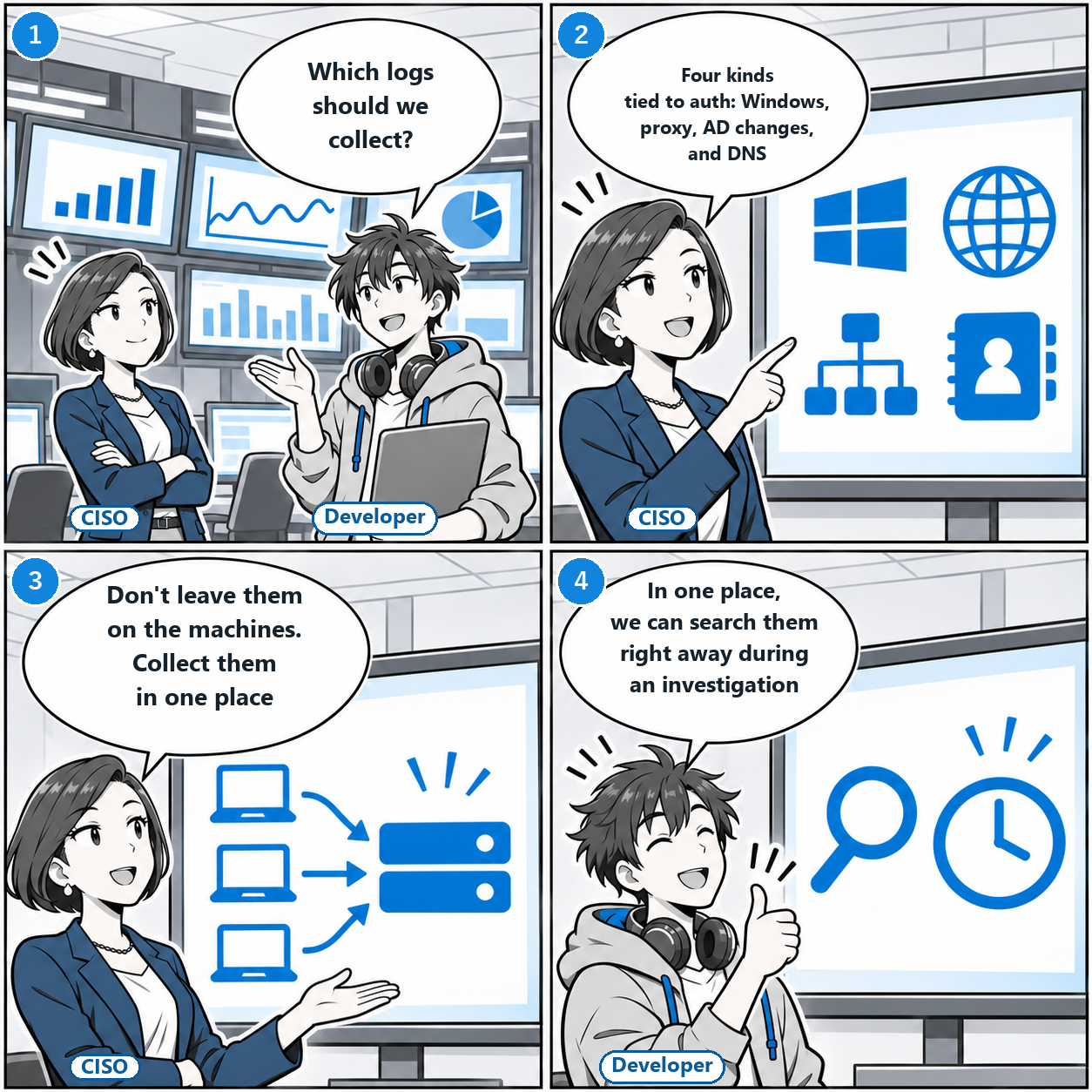
- DeveloperWhich logs should we collect?
- CISOFour kinds tied to auth: Windows, proxy, AD changes, and DNS
- CISODon't leave them on the machines. Collect them in one place
- DeveloperIn one place, we can search them right away during an investigation
The sections so far were about hardening the entry points. From here on, the topic is noticing when someone has gotten in.
To notice, you need to record authentication-related events without gaps, gather them in one place, and keep them in a form people can read. In an Active Directory environment, the following four kinds of logs form the foundation.
| Log | Where to get it | What it tells you | Typical fields |
|---|---|---|---|
| Windows security log | Domain controllers, each server, PCs | Who signed in, when, from where, and by what method. Failures and lockouts | Event IDs 4624 / 4625 / 4672 / 4740 |
| Proxy access logs | Proxy server | Who sent and received how much data to and from which external sites. How often authentication was requested (407) | User name, destination, date and time, bytes, status code |
| Active Directory changes | Domain controllers | Creation and deletion of users and groups, additions to group membership, password changes | Additions to groups are event IDs 4728 / 4732 / 4756 |
| DNS queries | DNS servers | Queries for names used by malware, surges in nonexistent names (NXDOMAIN) | Query source, name, response code |
- 4624 Successful logon. The logon type (Logon Type) distinguishes interactive (2), network (3), Remote Desktop (10), and so on
- 4625 Failed logon. The first sign of brute-force attacks and password spraying
- 4672 Logon with special privileges. Raised when a session with administrator-level rights is created. It also fires for SYSTEM logons, so collect it with exclusion conditions
- 4740 Account lockout. A sign that failures exceeded the threshold
How to collect: Windows Event Forwarding
Logs are useless if they stay on the machine where they were generated, because the logs on a compromised machine get erased. Windows has a built-in way to send logs to one place without additional products, called Windows Event Forwarding (WEF).
There are two key settings. Configure the collection service on the collector, and enable Windows Remote Management on the sending side. Each is a one-line command.
# On the collector (the receiving side), run as administrator
wecutil qc /q
winrm qc -q

# On each source (the sending side). This can also be configured in bulk with Group Policy
winrm qc -q
This is only initialization, and no events flow yet. To start forwarding, create a "source-initiated" subscription on the collector, distribute the collector's location (SubscriptionManager) to the sending side through Group Policy, confirm that the sending side has permission to read the Security log and the right audit policy, and verify that events arrive in the collector's "Forwarded Events" log.
Which events a subscription collects is specified with XPath. For example, to collect only successful logons, failed logons, and lockouts, use the following.
<QueryList>
  <Query Id="0" Path="Security">
    <Select Path="Security">
      *[System[(EventID=4624 or EventID=4625 or EventID=4740)]]
    </Select>
  </Query>
</QueryList>
# On the collector, check the list and status of the subscriptions you created
wecutil es
wecutil gr "SubscriptionName" # Shows each source's connection status and last arrival timeHow to read them: catching late-night logons
The first step in spotting anomalies in the collected logs can be a simple condition. For example, "successful interactive logons in the last 24 hours before 6 a.m. or after 10 p.m."
# List interactive logons (LogonType 2 and 10) late at night or early in the morning over the last 24 hours
New-Item -ItemType Directory -Path 'C:\\audit' -Force | Out-Null
$since = (Get-Date).AddDays(-1)
$hits = Get-WinEvent -FilterHashtable @{ LogName = 'Security'; ID = 4624; StartTime = $since } |
  Where-Object {
    $lt = $_.Properties[8].Value
    ($lt -eq 2 -or $lt -eq 10) -and ($_.TimeCreated.Hour -lt 6 -or $_.TimeCreated.Hour -ge 22)
  } |
  Select-Object TimeCreated,
    @{ N = 'User';        E = { $_.Properties[5].Value } },
    @{ N = 'Domain';      E = { $_.Properties[6].Value } },
    @{ N = 'LogonType';   E = { $_.Properties[8].Value } },
    @{ N = 'Workstation'; E = { $_.Properties[11].Value } }

$hits | Format-Table -AutoSize
$hits | Export-Csv -Path "C:\\audit\\night-logons-$(Get-Date -Format yyyyMMdd).csv" -NoTypeInformation -Encoding UTF8Send-MailMessage. Microsoft marks Send-MailMessage as obsolete, and it does not guarantee secure connections to SMTP servers.7.2.2 Detecting Abnormal Access Patterns
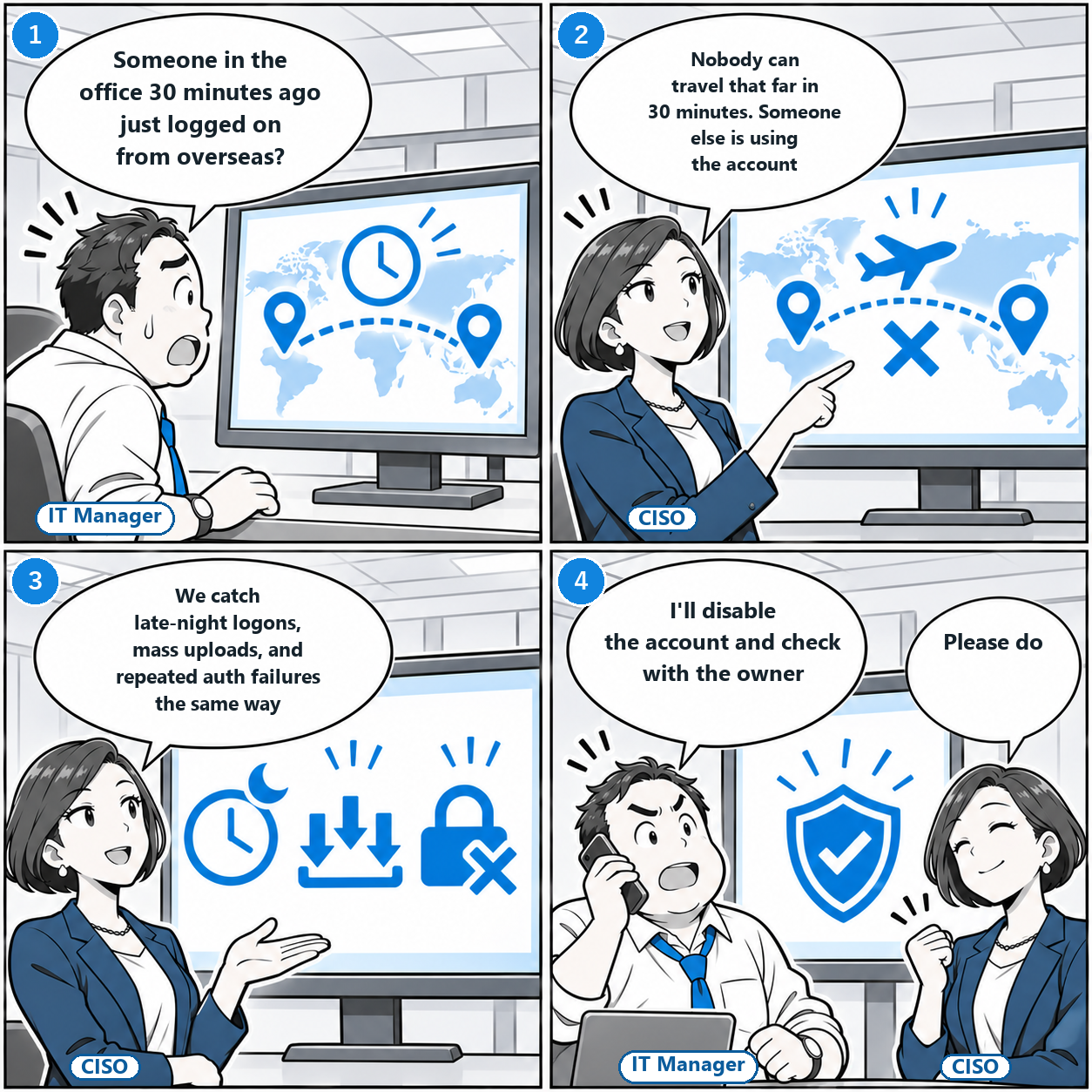
- IT ManagerSomeone in the office 30 minutes ago just logged on from overseas?
- CISONobody can travel that far in 30 minutes. Someone else is using the account
- CISOWe catch late-night logons, mass uploads, and repeated auth failures the same way
- IT ManagerI'll disable the account and check with the owner
- CISOPlease do
Once the logs are collected, the next step is finding what is "different from usual."
To do that, you first need to know what "usual" is: who uses which systems, at what times, from which devices. This is called a baseline. Baselines differ by person and department, so some things slip past a single company-wide threshold.
| What to watch | Example baseline | Example anomaly | Main data source |
|---|---|---|---|
| Time of day | Interactive logons during weekday business hours | Interactive logons late at night or on holidays | Security log 4624 |
| Location and device | Usual devices, the office network, the usual VPN egress | Unfamiliar devices, overseas IPs, two distant places within a short time | Security log, VPN logs |
| Systems used | Only the servers that match the role | Network logons (Logon Type 3) to servers unrelated to the role | Security log 4624, 4672 |
| Traffic volume | Distribution of daily sent and received volume | Large downloads or uploads in a short time | Proxy access logs |
| Authentication failures | Occasional typos | A few failures each across many users (password spraying), repeated failures for one user | Security log 4625 / 4740, proxy authentication result logs (frequent 407s are a supporting sign) |
Impossible travel
The easiest anomaly to understand is "impossible travel." Microsoft Defender for Cloud Apps defines it as activity from two geographically distant locations recorded within a time shorter than it would take to travel between them, and detects it as a sign that someone else is using the same credentials.
The idea is simple. Compute a speed from the distance between the two logon locations and the time between them, and raise an alert if it exceeds a realistic limit. Locations are derived from IP addresses at the country or region level. If you implement this yourself, logons inside the office come from private addresses that cannot be mapped to a location, so treat "the office network" as a single location, and for VPN logons use the source IP recorded in the VPN connection logs. You need to match authentication logs and VPN logs by user name and time.
What to look for in proxy logs
In this series' environment, all traffic to external generative AI services goes through the proxy. That means the proxy logs are the very record of "who sent what outside." If they are loaded into a form you can aggregate with SQL, the following three queries are a starting point (written in MySQL 8.0 syntax).
-- 1. Users whose total sent and received exceeded 1 GiB in the last hour (bytes is assumed to be the column for total sent and received)
SELECT username, SUM(bytes) AS total_bytes, COUNT(*) AS requests
FROM proxy_logs
WHERE ts > NOW() - INTERVAL 1 HOUR
GROUP BY username
HAVING SUM(bytes) > 1073741824;

-- 2. Connections to destinations not on the allow list (most frequent first). NOT IN returns nothing if the allow list contains NULL, so use NOT EXISTS
SELECT p.username, p.dst_host, COUNT(*) AS cnt
FROM proxy_logs AS p
WHERE NOT EXISTS (
  SELECT 1 FROM allowed_domains AS a WHERE a.domain = p.dst_host
)
GROUP BY p.username, p.dst_host
ORDER BY cnt DESC;

-- 3. Users who received more than 10 responses of 407 in the last 10 minutes (407 = Proxy Authentication Required)
SELECT username, COUNT(*) AS challenges
FROM proxy_logs
WHERE status_code = 407
  AND ts > NOW() - INTERVAL 10 MINUTE
GROUP BY username
HAVING COUNT(*) > 10;
The 407 in the third query is the response RFC 9110 defines as "authentication is required to use the proxy." It is not an authentication failure in itself. Even with normal authentication, the first request gets one 407 back, and the request then goes through with credentials attached. So frequent 407s mean "suspected failures," not confirmed ones. To confirm, look at the proxy's own authentication result logs (for Squid, the results of the authentication helper). The first 407 often has no user name attached, so track it by source IP or per connection.
Thresholds such as 1 GiB and 10 times are only a starting point. Collect your own baseline for 1 to 2 weeks, then reset them just outside that distribution. The destination check in the second query is an exact host name match, so decide separately whether the allow list should cover subdomains.
proxy_logs and allowed_domains are example tables for proxy access logs loaded into a database. Adapt them to the actual log format and column names of Squid or whatever proxy you use.7.2.3 Conducting Regular Audits
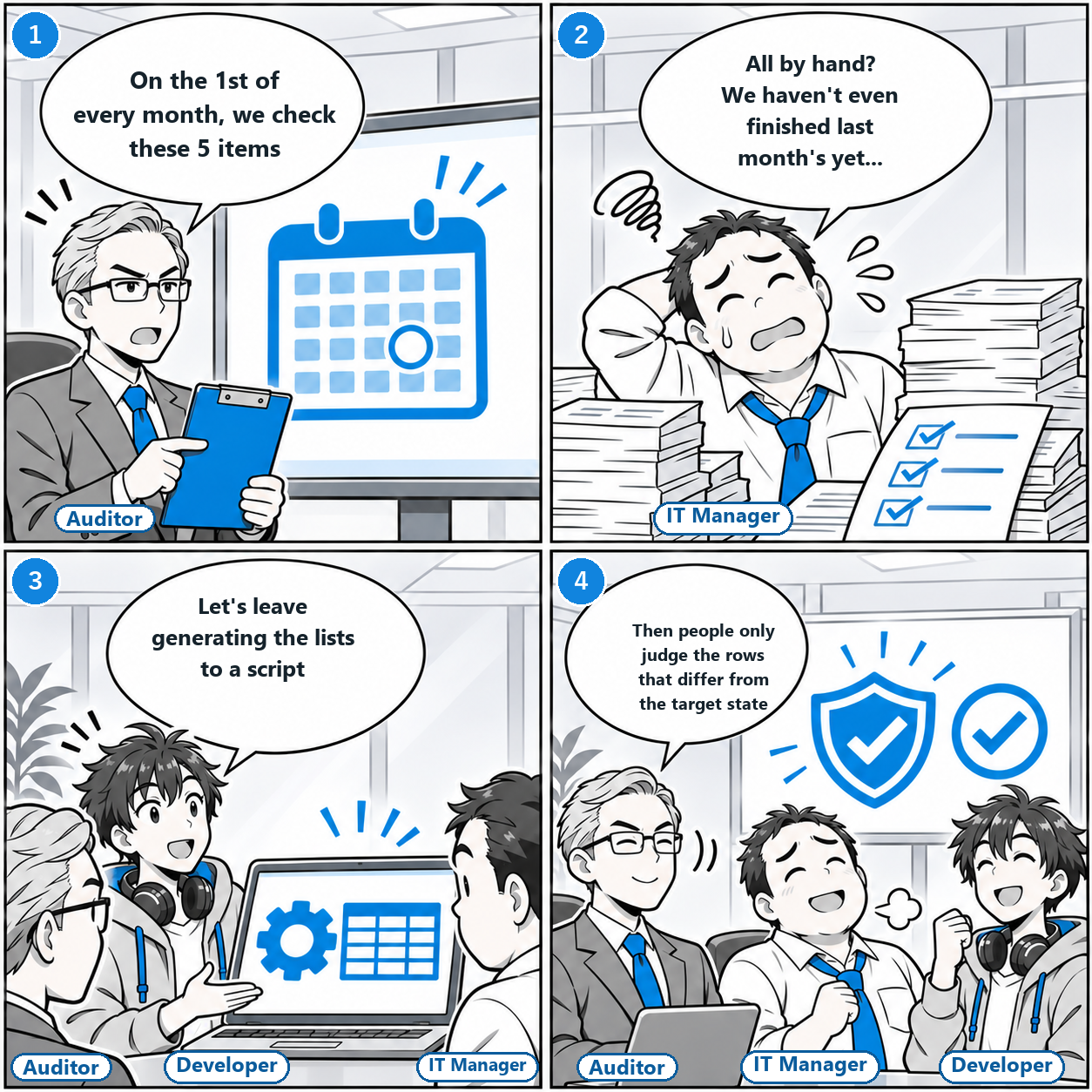
- AuditorOn the 1st of every month, we check these 5 items
- IT ManagerAll by hand? We haven't even finished last month's yet...
- DeveloperLet's leave generating the lists to a script
- AuditorThen people only judge the rows that differ from the target state
Settings drift a little at a time from the day they are put in place. Someone added to Domain Admins temporarily stays there, accounts of people who have left stay enabled, a password set to never expire as an exception is forgotten. This is called "configuration drift."
The basic way to find drift and correct it is to write out the current state at fixed intervals and compare it with the target state. Once a month, check the following five items. These five are the audit items this article recommends, each mapped to what was decided in 7.1. In addition, changes to privileged group membership (event IDs 4728 / 4732 / 4756) are monitored continuously with the mechanism from 7.2.1 instead of waiting for the monthly audit, and the monthly audit serves to catch what that missed.
| Item | What to check | Target state (what was decided in 7.1) |
|---|---|---|
| 1. Privileged accounts | Members of Domain Admins, Enterprise Admins, and Schema Admins, and their last logon | Enterprise Admins has 0 members. Domain Admins has only a few break-glass members. No everyday-work accounts are in them |
| 2. Password policy | The domain policy and the contents of fine-grained password policies (PSOs) | Still the length and maximum age decided in 7.1.2. No unknown exceptions |
| 3. Dormant accounts | Enabled users with no logon for 90 days or more | Accounts of people who have left are disabled. Long absences are known |
| 4. Service accounts | Accounts whose passwords never expire, and their rights | Those that can be moved are migrated to gMSA. The reasons for the rest are recorded |
| 5. Log settings | Audit policy, WEF subscription status, free space at the storage location | The events from 7.2.1 arrive from every machine. No machine is missing |
Doing it by hand does not last, so automate the export
Checking five items by hand every month does not last. Leave producing the lists to a script, and have people judge only the "rows that differ from the target state." The following script runs on a domain controller or a management machine with RSAT installed, and exports to CSV the lists for items 1 to 4 and the current values of the item 2 policies. Item 5 (log settings) is checked with wecutil gr from 7.2.1 and by reviewing the audit policy.
# Monthly AD audit. Export the lists to CSV (requires the ActiveDirectory module)
Import-Module ActiveDirectory
$stamp  = Get-Date -Format yyyyMM
$outDir = "C:\\audit\\$stamp"
New-Item -ItemType Directory -Path $outDir -Force | Out-Null

# 1. Privileged group members. Keep direct members (nested groups also appear as rows) and effective members with nesting expanded
#    in the same 7 columns (Export-Csv cannot append correctly unless the column structure matches)
$rows = foreach ($g in 'Domain Admins', 'Enterprise Admins', 'Schema Admins') {
  Get-ADGroupMember -Identity $g |
    Select-Object @{ N = 'Group'; E = { $g } }, @{ N = 'Kind'; E = { 'direct' } },
      objectClass, SamAccountName, Name,
      @{ N = 'Enabled'; E = { $null } }, @{ N = 'LastLogonDate'; E = { $null } }
  Get-ADGroupMember -Identity $g -Recursive |
    Where-Object { $_.objectClass -eq 'user' } |
    Get-ADUser -Properties LastLogonDate, Enabled |
    Select-Object @{ N = 'Group'; E = { $g } }, @{ N = 'Kind'; E = { 'effective' } },
      objectClass, SamAccountName, Name, Enabled, LastLogonDate
}
$rows | Export-Csv -Path "$outDir\\privileged.csv" -NoTypeInformation -Encoding UTF8

# 2. Current values of the domain password policy and the fine-grained password policies (PSOs)
Get-ADDefaultDomainPasswordPolicy |
  Export-Csv -Path "$outDir\\domain-password-policy.csv" -NoTypeInformation -Encoding UTF8
Get-ADFineGrainedPasswordPolicy -Filter * |
  Select-Object Name, Precedence, MinPasswordLength, MaxPasswordAge, ComplexityEnabled,
    @{ N = 'AppliesTo'; E = { ($_.AppliesTo | ForEach-Object { $_.ToString() }) -join '; ' } } |
  Export-Csv -Path "$outDir\\fine-grained-policy.csv" -NoTypeInformation -Encoding UTF8

# 3. Enabled users with no logon for 90 days or more. Keep rows with an empty LastLogonDate (no record) so they can be reviewed separately
$cutoff = (Get-Date).AddDays(-90)
Get-ADUser -Filter 'Enabled -eq $true' -Properties LastLogonDate |
  Where-Object { $null -eq $_.LastLogonDate -or $_.LastLogonDate -lt $cutoff } |
  Select-Object SamAccountName, Name, LastLogonDate |
  Export-Csv -Path "$outDir\\inactive-90d.csv" -NoTypeInformation -Encoding UTF8

# 4. Enabled users whose passwords never expire
Get-ADUser -Filter 'PasswordNeverExpires -eq $true -and Enabled -eq $true' -Properties PasswordLastSet |
  Select-Object SamAccountName, Name, PasswordLastSet |
  Export-Csv -Path "$outDir\\password-never-expires.csv" -NoTypeInformation -Encoding UTF8

# 5. Users created in the past 30 days
Get-ADUser -Filter * -Properties whenCreated |
  Where-Object { $_.whenCreated -gt (Get-Date).AddDays(-30) } |
  Select-Object SamAccountName, Name, whenCreated |
  Export-Csv -Path "$outDir\\created-30d.csv" -NoTypeInformation -Encoding UTF8

Get-ChildItem $outDir | Select-Object Name, LengthLastLogonDate is derived from the lastLogonTimestamp attribute. This attribute is not updated at every logon; it is updated only when the previous value is older than msDS-LogonTimeSyncInterval (the initial update interval is 14 days minus a random amount). That is enough for coarse checks such as "90 days or more," but not for day-level decisions. An empty row does not necessarily mean "never signed in," so look at it together with the creation date. When you need the exact last logon, collect lastLogon from each domain controller and take the maximum.The purpose and rights of service accounts cannot be determined from the list of non-expiring passwords alone. Check them against the service configuration (which service on which server runs under that account) and the rights delegated on OUs and servers.
The exported CSV only becomes an audit when you diff it against last month's and record, for each changed row, "is this an approved change?" and "who will fix it?" Not stopping at producing the lists is what matters most for keeping it going.
How much log data to keep, and how
Log retention is the foundation of auditing. The retention period is determined by the regulations that apply to your industry and your contracts with business partners, so first confirm with your legal or audit department which regulations apply to your company, and write the period and its basis into your internal rules. A period with no basis, such as "one year for now," turns out to be either too short or needlessly long when it is actually demanded.
Once the period is set, the requirements for how to keep the logs are the same regardless of regulation.
| Requirement | Why | Example implementation |
|---|---|---|
| Tamper-proof | Prevent an intruder from deleting or rewriting the logs | Write-once (WORM) storage. Compute hashes of log files finalized after compression in a separate job, and record them in a tamper-resistant store |
| Searchable | During an investigation, narrow down by period and user within minutes | A SIEM, or storage indexed by time. Compress in a searchable format |
| Provably complete | Avoid ending up with "there are no logs for this period" | Check arrivals from each machine daily and alert on machines that stopped |
| Restricted readers | The logs themselves can contain personal activity and credentials like those in 7.1.1 | Limit read access to the storage to the audit team, and log the reads too |
If you aggregate logs on a Linux log server, leave rotation and compression to logrotate. Do not compute the tamper-detection hashes inside logrotate. Compute them in a separate job on files whose compression has finished and whose contents are final, and record them in a non-rewritable store separate from the log server. If the hashes sit in ordinary files on the same server, an intruder can rewrite both the logs and the hashes.
# /etc/logrotate.d/security-logs (handles only rotation and compression)
/var/log/security/*.log {
    daily
    # rotate is the number of rotations, not the number of days kept
    rotate 400
    compress
    delaycompress
    missingok
    notifempty
    create 0600 root root
}
rotate is the number of rotations, not the retention period in days. Even with daily rotation, empty days are skipped by notifempty, and days when the server was down do not count. What guarantees the retention period is a mechanism on the storage side, such as the retention settings of WORM storage or object storage.Chapter summary
Security is a cycle of "prevention," "detection," and "response." Harden the entry points in 7.1 (prevention), notice drift and anomalies through the monitoring in 7.2.1 and 7.2.2 and the audits in 7.2.3 (detection), and correct what you find and feed it back into policy (response). As long as these three keep turning, your authentication infrastructure grows stronger over time instead of weaker.
Next time, in Part 8, we will turn everything so far into concrete configuration examples, and look at how to combine it with AI security tools, from small to large environments.