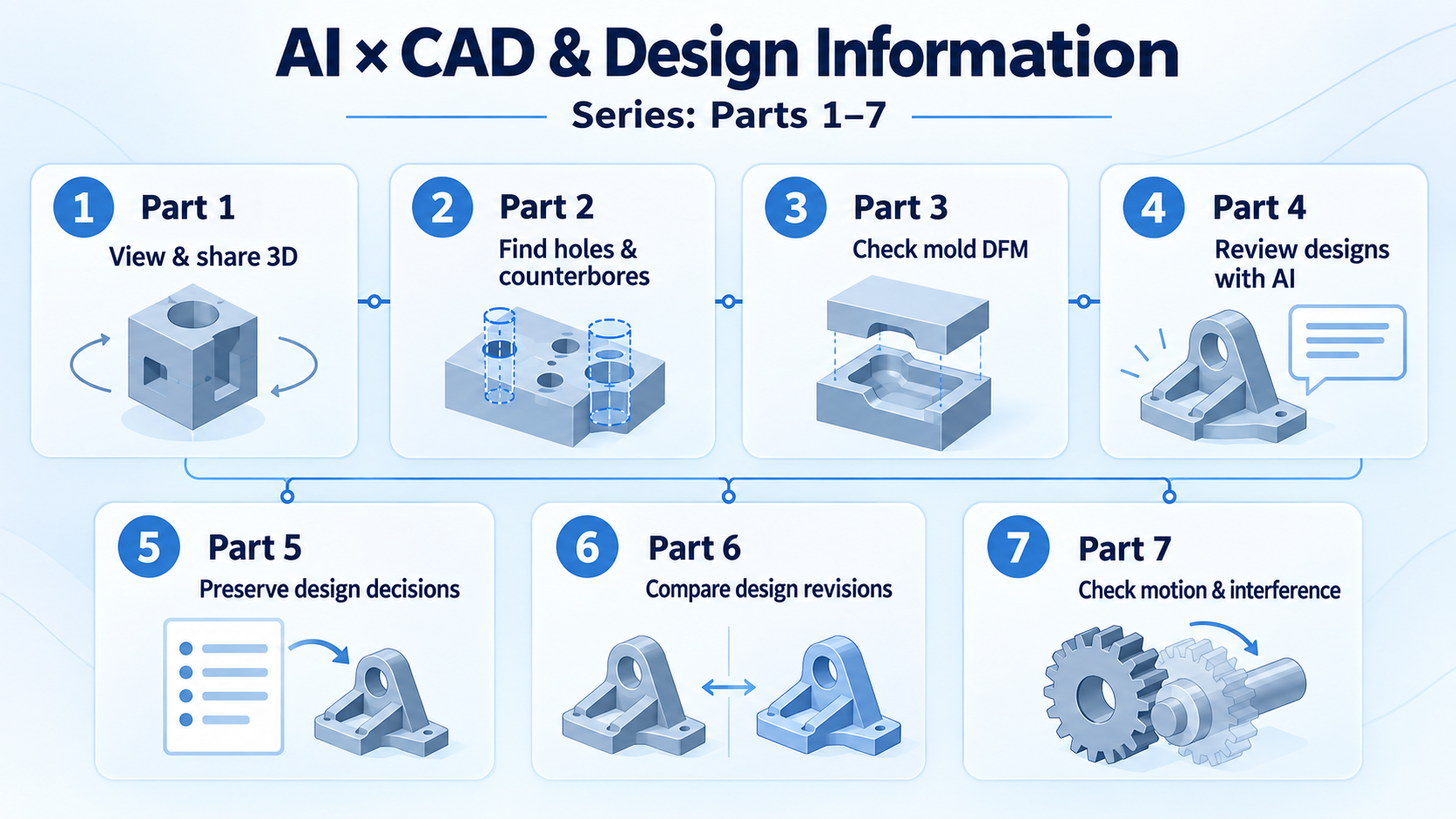
[AI×CAD] Part 6: Show What Changed in 3D — Compare and Share STEP and STL Revisions in Your Browser
A moved sensor, larger mounting holes, and added or removed parts: use an interactive CADAS comparison to see how design changes can be shared with procurement and assembly teams.

![[AI×CAD] Part 6: Show What Changed in 3D — Compare and Share STEP and STL Revisions in Your Browser](/content/images/size/w1200/2026/10/ai-cad-step-viewer-part6-en-1.png)
Hello!
"Here is the revised STEP file." A separate email explains which parts changed. You read the drawing's revision notes, open the previous model, and switch between views to find the differences. Does this sound like your design-change workflow?
A larger mounting hole, a moved sensor, an added stiffener: a small change for the designer can mean different parts to order or a different mounting position for assembly. If you share only the finished revision, the recipient has to start by finding those differences.
In this article, we use the free, registration-free CADAS to overlay and compare the before-and-after geometry. Part 6 is about sharing what changed in a form people outside design can inspect for themselves.
Start by looking at where the sensor moved
The demo below compares revisions A and B of the CADAS linear-stage sample. It is interactive 3D, not a static image. Select "Moved · limit-sensor" to focus on the sensor before and after the change. Orange shows the earlier revision; green shows the later revision.
Switch between Before and After to see the new position. The list reports a center movement of 15.000 / 0.000 / 0.000mm. In this sample, the sensor moved 15mm along X. You can inspect both the difference and its location in the browser.
On a small screen, open the comparison demo directly for more room to work.
Still 25 parts, but four changes
The sample combines guide rails, a screw shaft, a moving carriage, a motor, a sensor, and other components. Both revisions have 25 parts. Equal part counts do not mean identical content.
To validate the comparison, we deliberately made four changes in revision B. Dimensions in the following table are the sample's design values. CADAS did not infer the purpose of the hole diameter or automatically generate this explanation.
| Part | Change made in the sample | Comparison result |
|---|---|---|
| Mounting plate: tooling-carriage | Mounting-hole diameter changed from 6.6mm to 8.5mm | Mesh changed |
| Sensor: limit-sensor | Moved 15mm along X | Moved |
| Stiffener: rear-stiffener | Added in revision B | Added |
| Cable clip: cable-clip | Removed in revision B | Removed |
The actual comparison reported 22 matching meshes, one moved part, one mesh change, one added part, one removed part, and zero matches needing review. Because additions and removals are counted separately, the list contains 26 parts across the two revisions. Revision B itself still has 25 parts.
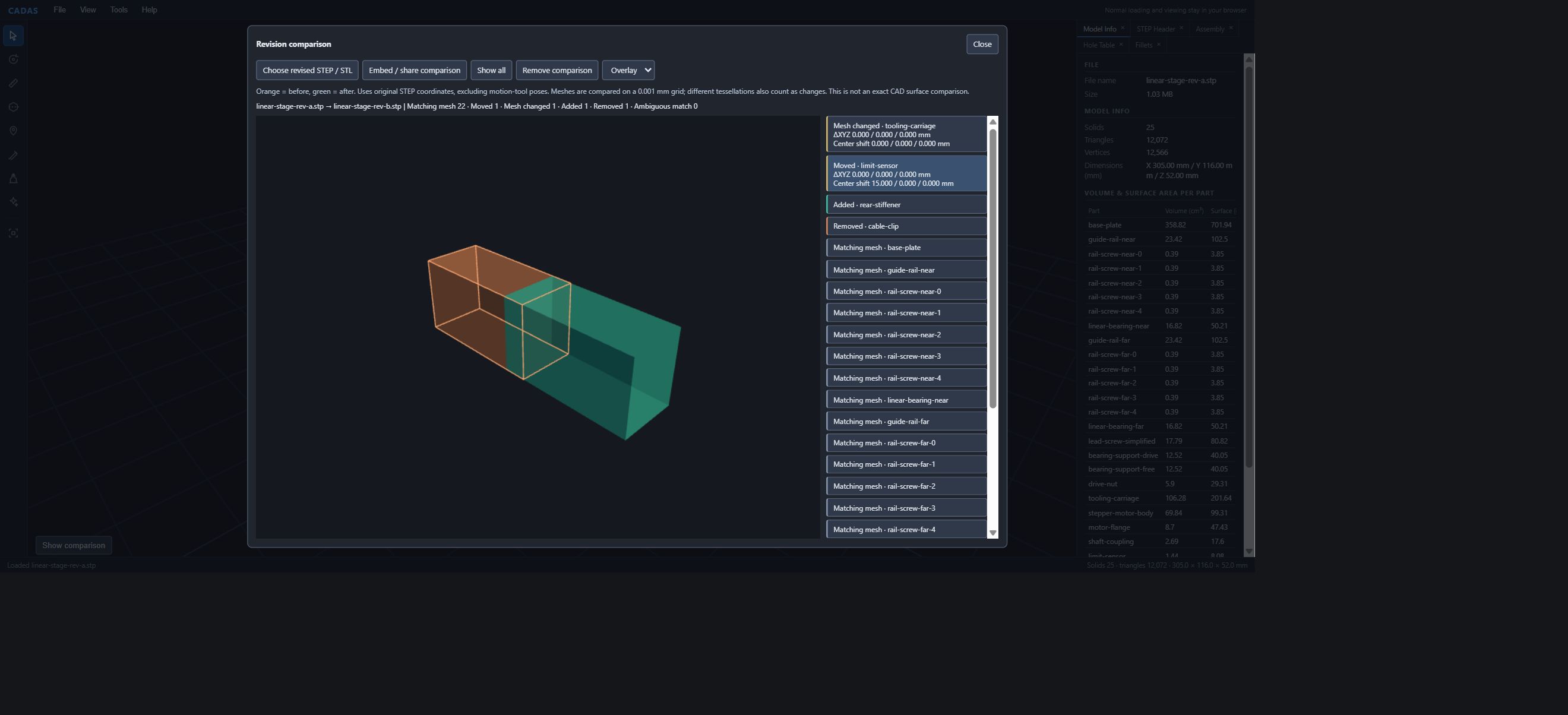
Select the mounting plate and inspect the area around its holes for different overlay colors. Then select the added stiffener and removed clip. Filtering the subject by change type helps you decide what to inspect before comparing all 25 parts individually.
For your own STEP or STL files, open the earlier revision first
Load the earlier STEP or STL file in CADAS, then choose the revised file through File > Compare revisions. The comparison window shows both filenames and the result for each part.
Export both files with the same origin and orientation to make comparison easier. CADAS compares geometry in the coordinates stored in the source files. A pose temporarily adjusted with the rotation tool is not treated as a design revision.
STEP can retain an assembly's part structure. STL is also supported, useful for comparing shapes exported for 3D printing. Choose units when opening STL. One STL is treated as one part, so STEP with assembly structure makes it easier to narrow down differences between individual components.
Normal loading and comparison run in the browser. You do not need to issue a share link to inspect differences in your own data.
Move from finding differences to deciding who should check what
Once a difference is visible, the next questions concern the work. If a mounting hole grew, do its mating part, fastener, or machining instructions need review? If a sensor moved, how did its detection position or relationship to nearby components change? If a stiffener was added, is it reflected in purchasing and assembly instructions?
These are examples of questions to ask when reviewing changes. The responsible people use the differences shown by CADAS to decide what their own work needs checked.
Designers can point to the changed part. Procurement can start with additions and removals. Assembly staff can rotate the changed location into a useful view. Browser-based comparison lets everyone discuss the same revision before learning CAD editing operations.
Share both revisions as one package
Export a share package (.cadas) while the comparison is active to bundle both models. The recipient can reopen the comparison in CADAS, reducing the need to explain which separate attachment contains the earlier revision.
For models that may be made public, use Embed / share comparison to include the current view state. Both revisions are uploaded, and CADAS issues a share URL and an iframe for embedding in a blog. This article's demo was made that way.
For parts that cannot be public, create a .cadas file locally and send it through an approved company channel. In either case, include the model revisions and what you want checked so the recipient can start with a clear purpose.
Colors show geometry differences; people record the reasons
CADAS compares meshes normalized in 0.001mm increments. This is not a measurement-accuracy specification or a manufacturing-tolerance guarantee. Changes in STEP export software or tessellation can produce differences even without an intended design change.
Use the list to narrow down the inspection. For a match marked as needing review, confirm that the two entries should be treated as the same part. Verify final hole dimensions and tolerances against the original CAD information or drawings.
The colors tell you that a shape or position differs. Ask the designer why it changed and record the answer. Combine the decision records from Part 5 with this before-and-after comparison, and a successor can read the reason while inspecting the change.
Start by explaining one change
CADAS is ready to try: choose File > Comparison sample (linear stage A → B). Start with the sensor. Switch between before and after, see where it moved, and explain that change to a colleague. Having the recipient inspect the same location makes the value of 3D sharing concrete.
For your own organization, begin with one pair of revisions. If checking changes takes too long, or handoffs from design to procurement miss details, we can examine how you store the data and pass it on. We support investigation, proof of concept, and implementation to integrate comparison results into internal review and change-management workflows.
Talk to Qualiteg about AI × CAD and Design Information Consulting
Next, we look at interference that a stationary assembly view cannot reveal. We will move a two-axis pan/tilt assembly in the browser and share the pose and motion range being checked. See you in the next article!