[AI×CAD] Part 1: Nobody Outside the Design Department Can See Your 3D Data — Solve It Free, in a Browser
We released CADAS, a free 3D viewer that opens STEP files in your browser. No install or sign-up. Viewing, measuring and sectioning are processed in-browser and files are never transmitted. Here is how to share 3D data with departments that have no CAD license, with real screens and measurements.

![[AI×CAD] Part 1: Nobody Outside the Design Department Can See Your 3D Data — Solve It Free, in a Browser](/content/images/size/w1200/2026/08/ai-cad-step-viewer-part1-en.png)
Hello!
The 3D data exists, but the people who need to see it have no CAD license. The 3D models that designers take for granted never reach procurement, sales or quality assurance, and so
"Sorry, could you paste a screenshot?"
flies around the office yet again. In much of manufacturing, this is everyday life.
This article introduces "CADAS", a free web application we have released that combines a viewer and analysis features for 3D CAD data and runs entirely in your browser. We will show what it can do and where it helps, with actual screens and usage examples.
CADAS — free browser-based 3D CAD viewer & AI analysis tool, in action
No installation, no sign-up, free of charge, nothing transmitted externally: open the URL and use it on the spot.
First, give the model below a spin. Drag to rotate, scroll to zoom. This is running entirely in your browser.
 Qualiteg Inc.
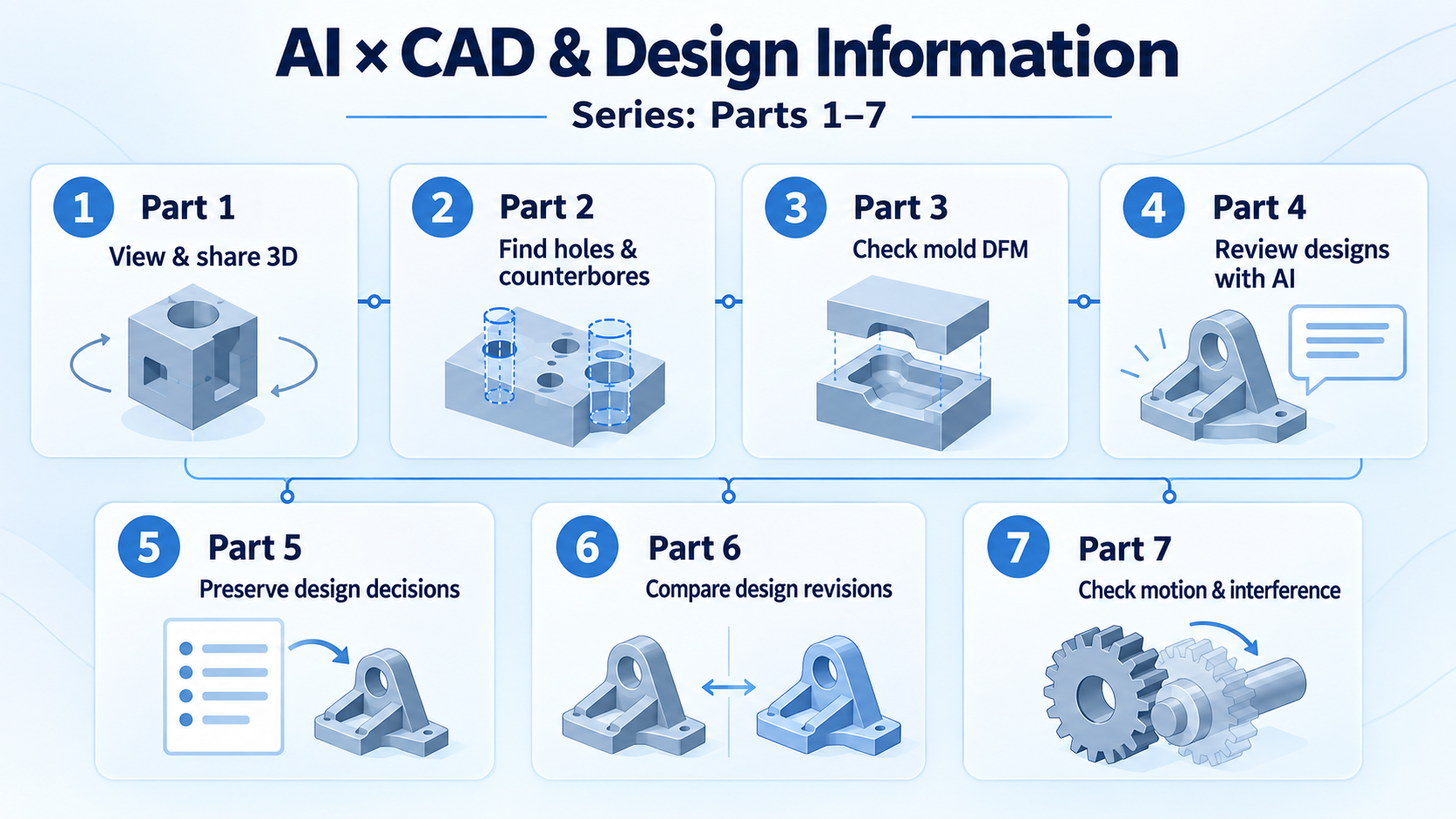
This is Part 1 of our seven-part "AI × CAD & Engineering Data" series.
From Part 2 onward we will go progressively deeper: feature recognition that picks up holes and counterbores automatically, mold draft checking, and AI design review. This first part covers the nearest layer: view, measure, section and hand over.
Why "could you paste a screenshot?" keeps happening
3D CAD licenses are expensive. Just covering every designer is a serious investment, so companies rarely buy seats for departments that only need to look at the 3D.
What happens as a result?
The estimator, who only wants to check a shape, ends up waiting for a designer to become free. Meetings with suppliers turn into rounds of 2D drawings and email, and confirming "what does this area actually look like?" alone takes days.
And the misunderstandings surface only after the part has been made.
Even though the 3D data itself has been sitting inside the company all along.
In our consulting work, we are seeing more and more inquiries about putting engineering data, CAD data first among it, to better use.
When we listen closely, we often find that before any advanced topic like AI adoption, this
"hardly anyone can even open the 3D"
problem is lying in the way.
Opening a STEP file in your browser
To use CADAS, opencadas-ai.com and drag & drop a STEP file (.step / .stp). That is all.
It is free to use.
A sample gallery is built in so you can try it even without a STEP file at hand. From "File > Sample Gallery" you can choose from four models: a reduction gear unit, an analog watch movement, a hole type plate and a plastic case.
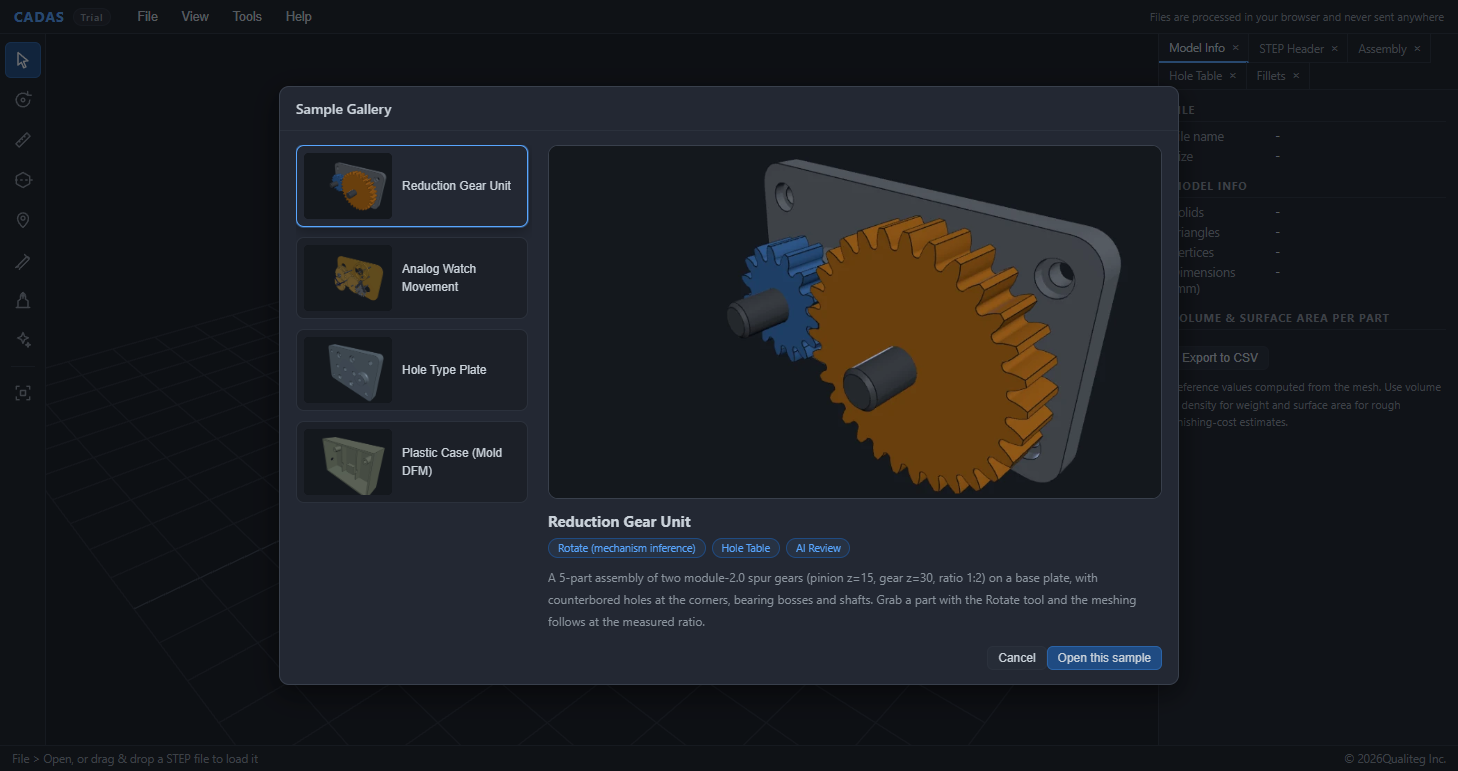
Let's open the reduction gear unit. It is a 1.03 MB STEP file with 5 solids and 5,908 triangles. Measuring the load time in our environment (Windows + Chrome), it took about 2.4 seconds from fetching the file to the 3D display.
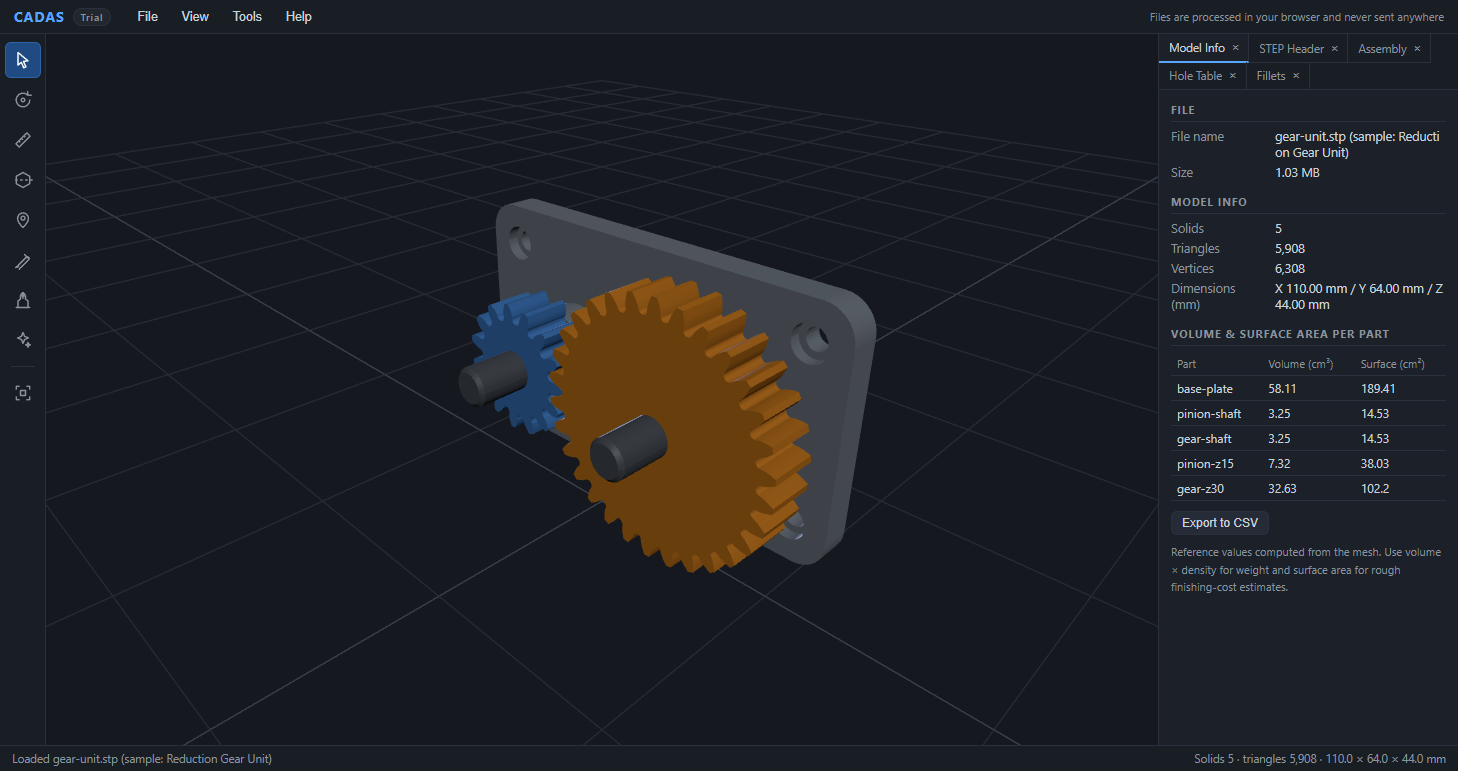
You can spin it freely with the mouse, and the right panel shows the file name, solid count and dimensions (110.00 × 64.00 × 44.00 mm for this model). Tabs also show the author and source CAD recorded in the STEP header, and the assembly tree.
Everything so far took nothing but a browser.
Not just viewing: measuring and sectioning
Being able to "see" it is not quite enough in a real meeting.
The questions that keep coming up are "how long is this part?" and "what does it look like inside?"
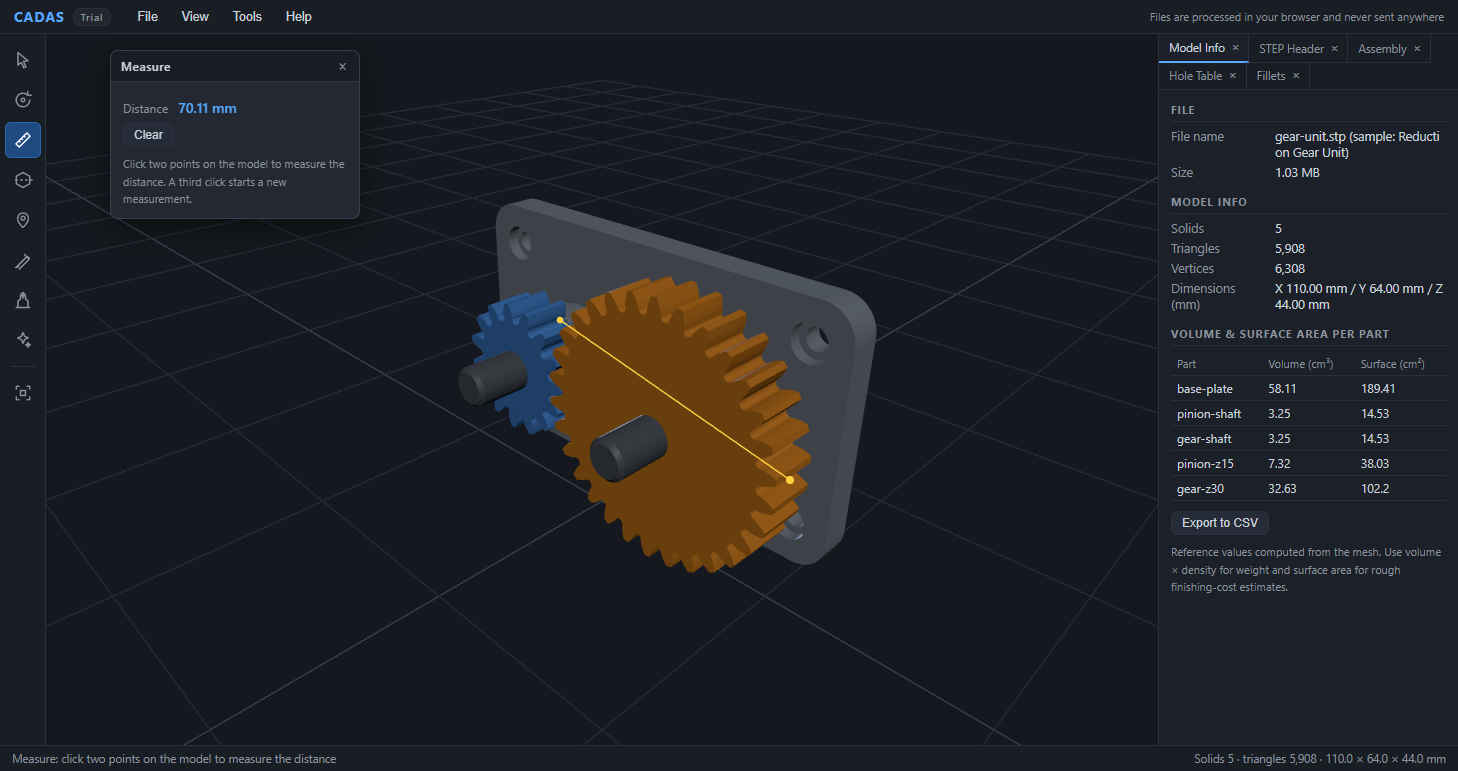
With the measure tool, click two points on the model and the distance appears. Measuring across the large gear from tooth tip to tooth tip gave 70.11 mm.
With the section tool, choose the X/Y/Z axis and move the slider, and the model is cut cleanly at that position. It is handy for checking internal structure and how parts fit together.
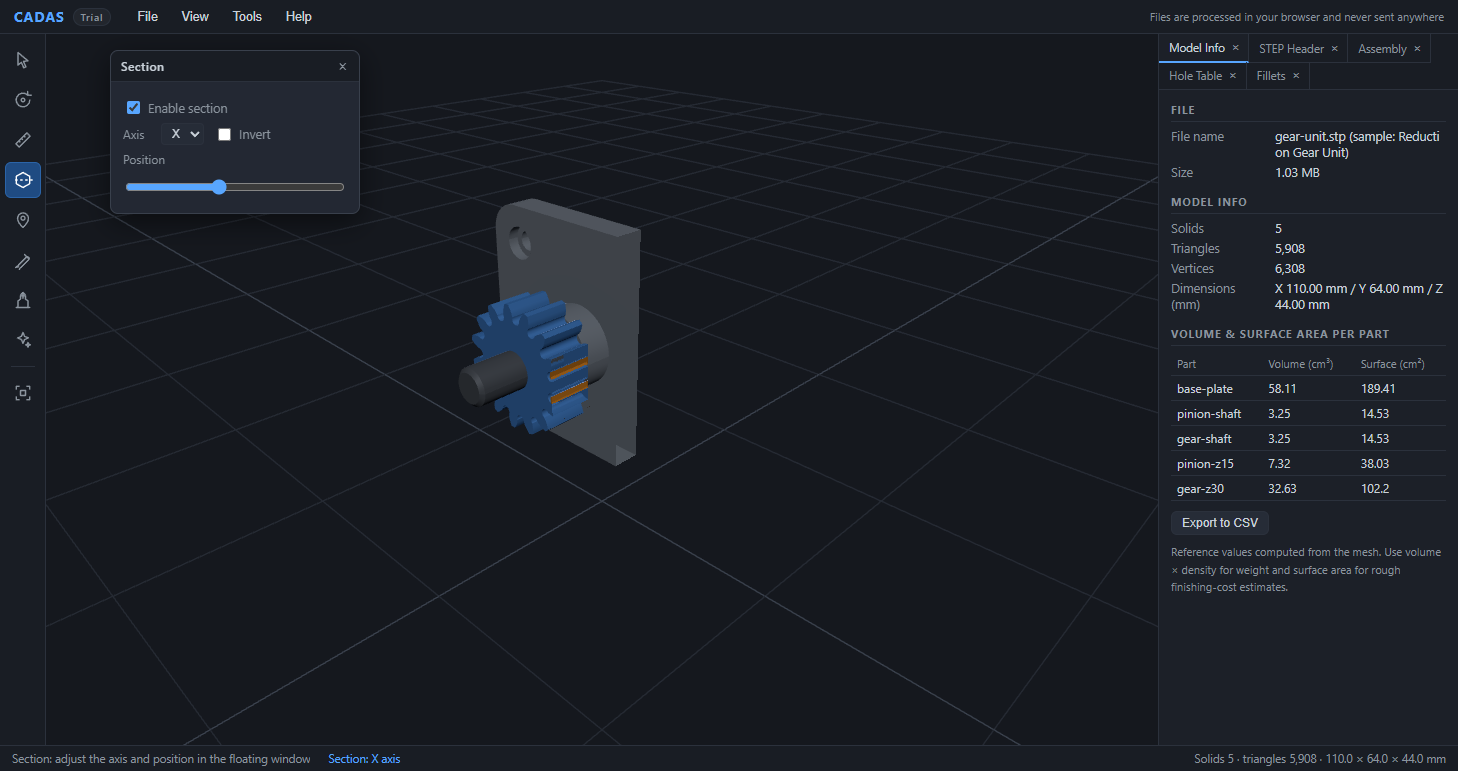
The "what does this area look like?" confirmation that used to take days of 2D drawings and email now finishes on the spot, with everyone looking at the same screen. That is exactly the scene CADAS is aiming at.
Any major CAD can get there via STEP
CADAS reads the STEP (ISO 10303) format.
STEP is the CAD industry's standard exchange format, and most major 3D CAD systems support STEP export.
| Your CAD | STEP export |
|---|---|
| CATIA | Supports STEP export |
| NX | Supports STEP export |
| Creo (Pro/ENGINEER) | Supports STEP export |
| SolidWorks | Supports STEP export |
| Inventor / Fusion 360 / Solid Edge | Supports STEP export |
* Supported APs and required licenses or modules vary by product, version and contract. Please check your CAD's documentation.
The STEP application protocols (APs) CADAS can read are AP203 / AP214 / AP242. If the design department exports to STEP and drops it in a shared folder, the recipient just opens it in a browser. Even when the other party runs a different CAD, sharing shapes gets much easier.
Handle confidential CAD data without letting it leave
This is the most important part for in-house use.
Design data is the very definition of company confidential. However convenient a tool may be, uploading CAD data to some external service of unknown provenance is not an option.
This is exactly why many companies have ended up with a blanket "no convenient web tools allowed" rule.
In CADAS,
the basic functions such as viewing, measuring and sectioning are processed entirely inside your browser, and the STEP file is never transmitted.
It is designed so that analysis can be kept strictly to in-browser processing, on the assumption that you are handling confidential data.
Only a few advanced CAD data analysis and AI review features send the STEP file to our server, and only after you explicitly consent on screen
(nothing is sent unless you explicitly agree in the dialog).
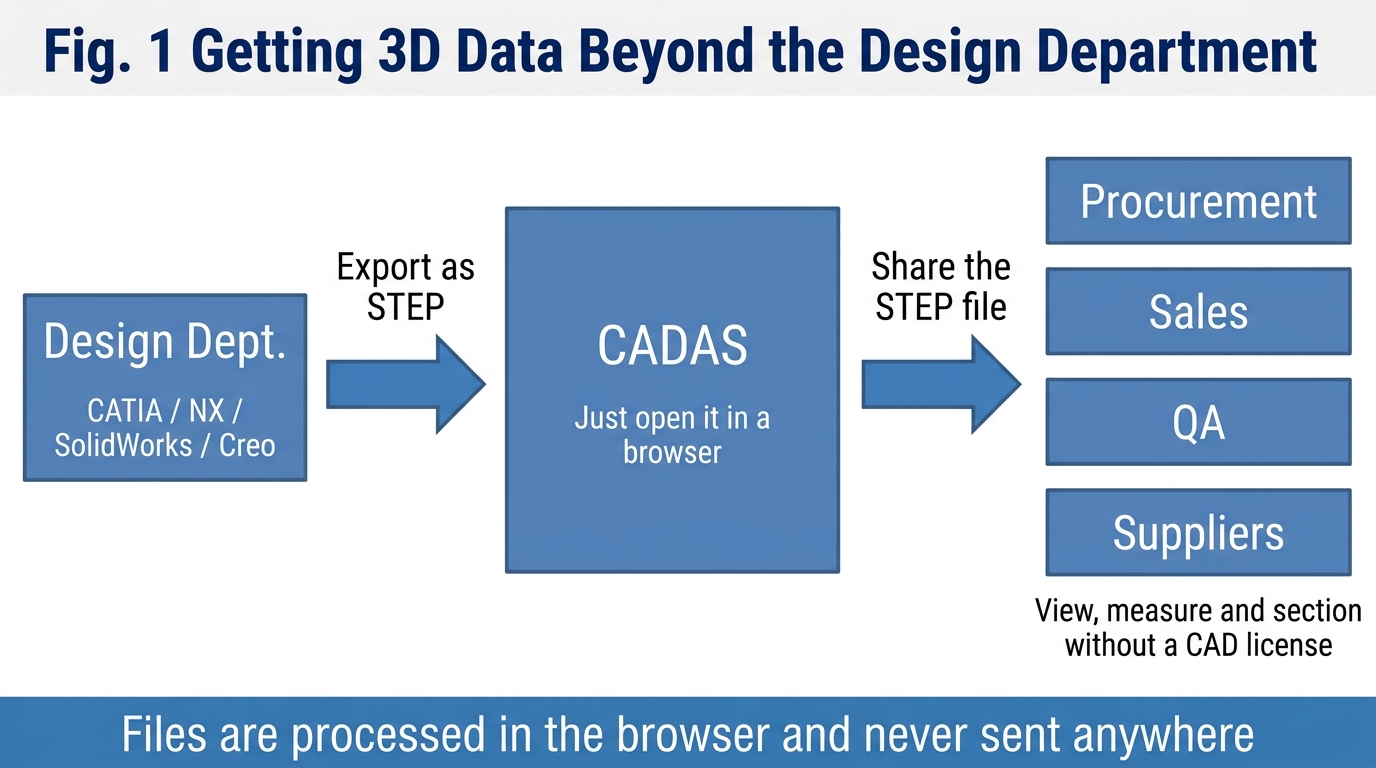
As Fig. 1 shows, when the design department exports to STEP, puts it in the internal shared folder and passes around the CADAS URL, departments without CAD licenses can look at the same 3D and discuss it.
For suppliers, hand over the STEP file through whatever secure channel you already use, and they simply open it in a browser. CADAS never holds your files, so the data stays wherever you manage it.
Hand over your "please look here" along with the file
Hand someone a STEP file and they can open it in a browser.
But in real exchanges, the sender always has a "please look at this part": the tolerance of this hole, the finish of this face, whether this relief is needed. Write all that in an email and a new round of "which part do you mean?" begins.
In CADAS you can attach notes right on the model. Click a part and leave a comment like "Is this surface roughness enough for the gear teeth?", andthe camera view at that moment is recorded along with it.
Each note is connected to its spot by a leader line that follows as you rotate the view, so you can always see where a note is attached. Click a note and the view switches to exactly what the author was looking at. The "which part do you mean?" explanations mostly disappear.
You can also put meaning on faces. Pick tags such as "Check" or "Machining" and paint faces with them, and "these faces are the same process, this one needs review" carries over in 3D as-is. Face counts and total areas per tag are tallied automatically and can be exported to CSV.
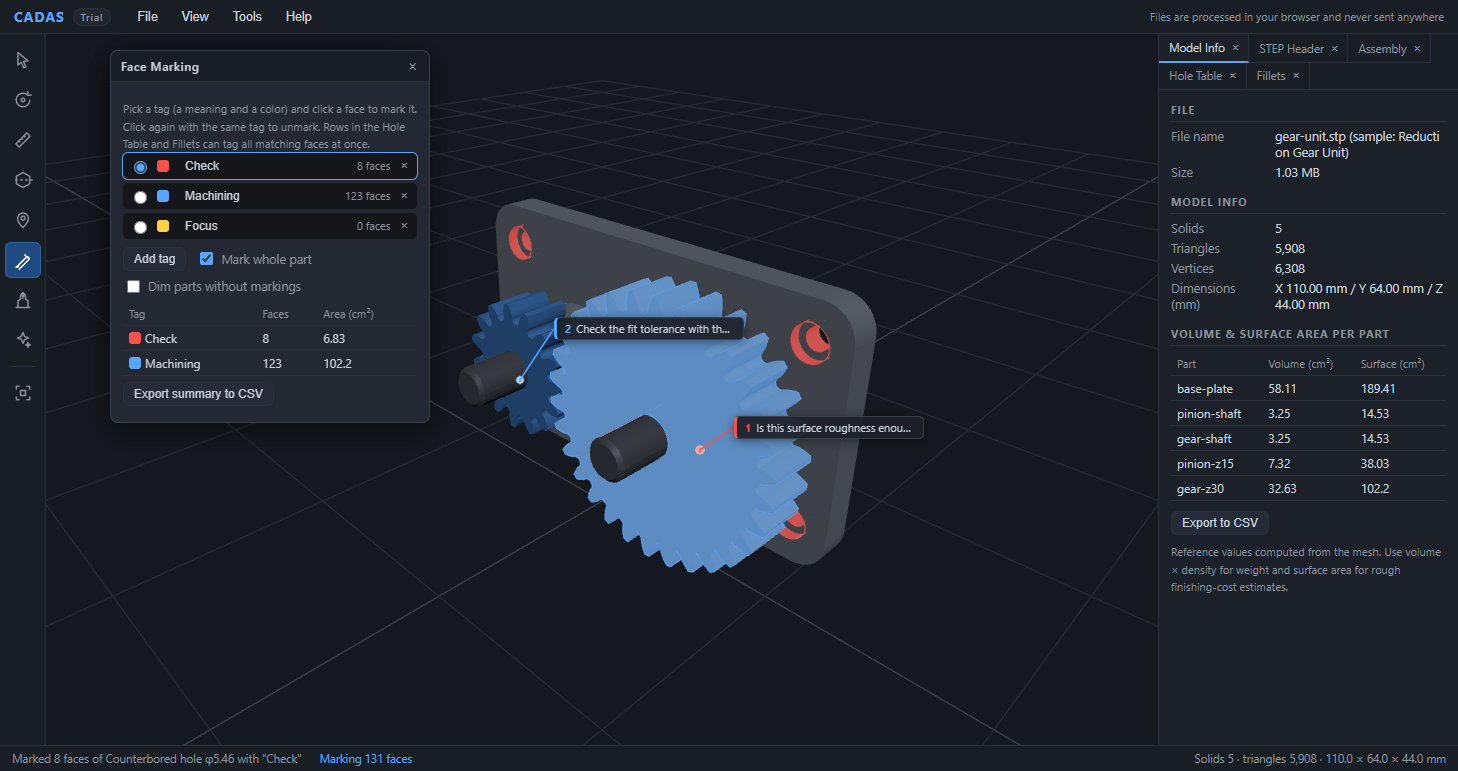
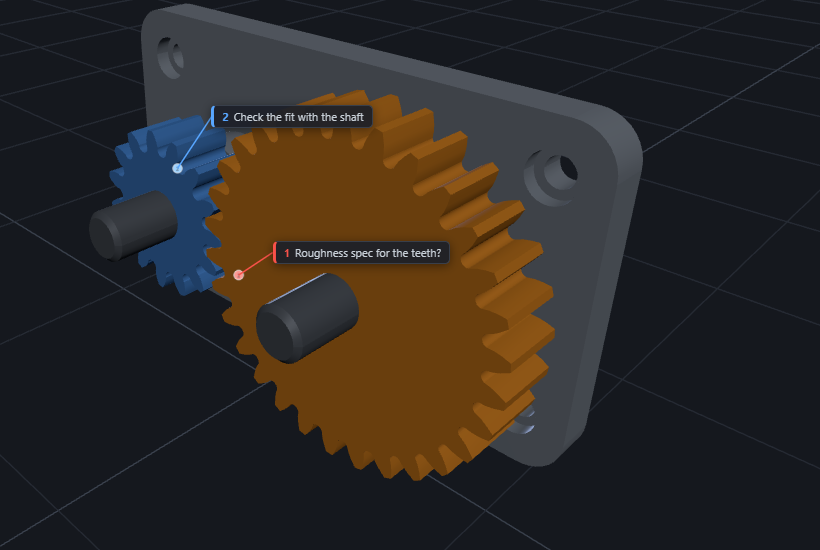
Then choose "File > Export Share Package", and the STEP file, notes, views, markings and display state such as sections are bundled into a single .cadas file. The recipient just drags & drops it into CADAS, and it opens with the notes attached and the views in place. This package, too, is created on your device and never sent anywhere.
When handing it over you can choose "view-only mode". The recipient's screen is limited to viewing, measuring, sections and reading notes, so you can pass it to people who have never touched CAD. You can also allow note-adding only, to collect replies to your comments.
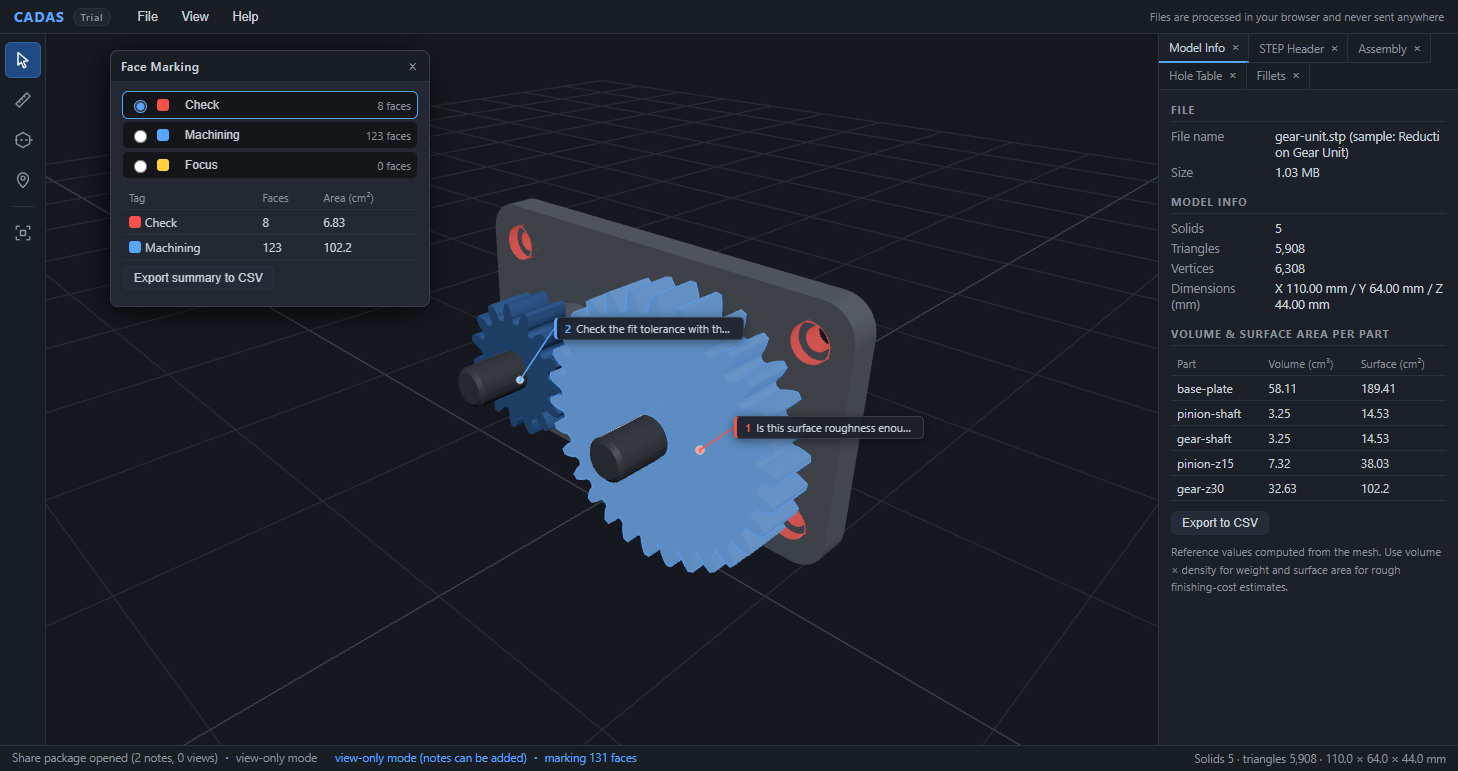
Here is the actual share package embedded as well. Spin it around and see how the notes and markings look.
Beyond "viewing": analysis and AI
CADAS is, in fact, not just a viewer.
It carries an engine in which a geometry kernel directly analyzes the B-Rep structure (the mathematical definition of the shape) in the STEP, providing
automatic classification of holes, counterbores and countersinks,
fillet tallies,
mold draft checking,
mechanism inference that measures gear meshing and rotates parts in sync,
and even AI-generated design reviews based on the measured results.
We will cover these one by one from Part 2 of this series.
Part 2 is about feature recognition that picks up holes and counterbores automatically. If you count holes by eye every time you quote, you will want to see it.
Start with the Sample Gallery
CADAS is free to use.
No sign-up needed. If you have a STEP file at hand, drag & drop it; if not, head to "File > Sample Gallery".
Open CADAS in your browser (free, no sign-up)
We are receiving a growing number of inquiries on managing engineering data, CAD data included, and on capturing and passing on design knowledge with AI, so we have opened anAI × CAD & Engineering Data consulting service (free initial consultation)and welcome your inquiries.
For CADAS itself, feel free to ask us about secure deployment inside your intranet or extending its CAD data analysis features.
See you in the next article!